The Google Blog Award Winner for Week Ending (w/e) December 12, 2009, for the best Blog or Website is...
Click on the LINK below to see the Award Winner
Armed Babes
An Award will be issued Weekly.
Voting is now open for Next Weeks Winner.
Remember, you decide who wins, you can even vote for yourself.
Vote for your favorite now....at:
Click here to VOTE:
Vote for Your Favorite Now
Get over an VOTE for your favorite BLOG or Site, people have all ready starting voting for next weeks winner. Get your friends to vote. Make sure you and your friends are following this Blog first to eligible.
Next Posting Tip, Trick, Hint, HTML Codes, JavaScript, and Cool Fun Stuff will be posted on: Wednesday December 16, 2009.
See you soon, thanks for visiting.
Please FOLLOW me -
On this Blog, Blogs Follow Me (http://blogsfollowme.blogspot.com)
On Twitter, blogsfollowme (http://twitter.com/blogsfollowme)

12/7/09
Google Blogging Tip # 94: Resolving Google Blog Issues with Post Editor
Q) Google Blog has two Post Edits found under 'Settings'; one is the 'Old' format and the other is 'New' format. Can you tell me how to upload movies from my desktop or computer file folder using the NEW Post Edit Format?
A) Explanation for Problem-
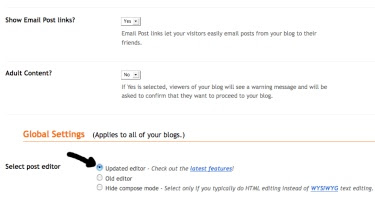
If you have a Google blogspot Blog and it is more than year a old you probably haven't even noticed that Google offers two settings for the Post Edit function (Adding a New Post to your Google Blog). New Blog owners will notice because some templates default to the 'New' format shown as Updated Editor, under Settings, at 'Select Post Editor.' Anyone can update their Blog to the new setting.
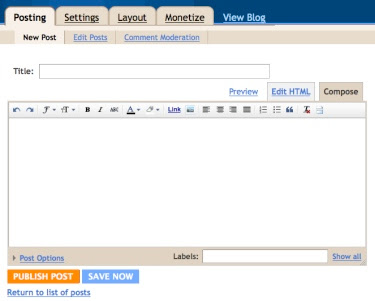
The problem with the 'New' Post Editor the functions are more like something you find in a Word Text file such as Microsoft Word. They do have a place to upload pictures, same as the old format. The problem is they have omitted the Icon Function to upload a movie / video. You can still copy and paste online videos such as YouTube, LiveLeak, etc. You can also link to a video post online and the video will function, but if the link is removed or lost the video on your blog is gone.
Google is still developing this New Format, but they have to be aware that the Icon for uploading a Video is not there.
My guess is that they omitted it on purpose. There can be several reasons for this, among them are:
1) Google doesn't want to be involved with someone uploading property that belongs to someone else, even though videos usually embed their owner's name and URL Address so credit s given.
2) Bandwith and data storage are the main reasons I am sure. Videos take up a lot of storage space and with millions of Google Bloggers all over the world, this becomes very costly. Remember your Blog is Free!
3) Google owns YouTube and wants t promote its use.
Solving the Problem-
In the interim, use the old editor (original) Post Edit Format if you upload videos from your computer. You can switch back and forth for now between editor formats.
If your video/movie is an original, then upload it to YouTube or another service similar to YouTube like LiveLeak.
Eventually Google will have to make a determination to either add a video icon for uploads or not, but the new Post Editor Format will become the norm with no option.
For long term, if you do not want to create a YouTube like video, then you may have to use another Blog or Social Network that allows video uploads.
See pictures below for further clarification.
Email Inquires: 4
The New Post Editor Format-
The Original Post Editor Format-
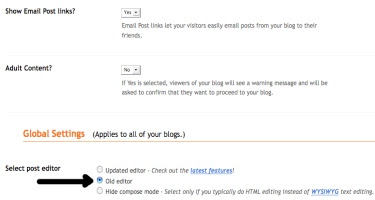
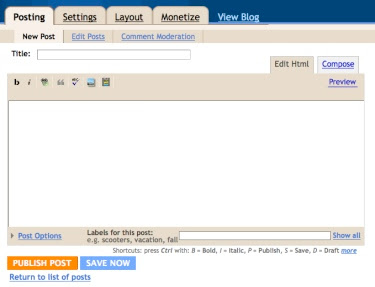
Thanks for visiting.
Please support this Blog, Follow me - and, I will Follow you!
Look for the next Posting Tip, Trick, Hint, HTML Codes, JavaScript, and Cool Fun Stuff coming soon.
I am still working out of the Phoenix/Scottsdale Arizona Office this week.
The Google Blog Award Winner for last week was:
Click on the Winners LINK-
Bad Santa Claus
A) Explanation for Problem-
If you have a Google blogspot Blog and it is more than year a old you probably haven't even noticed that Google offers two settings for the Post Edit function (Adding a New Post to your Google Blog). New Blog owners will notice because some templates default to the 'New' format shown as Updated Editor, under Settings, at 'Select Post Editor.' Anyone can update their Blog to the new setting.
The problem with the 'New' Post Editor the functions are more like something you find in a Word Text file such as Microsoft Word. They do have a place to upload pictures, same as the old format. The problem is they have omitted the Icon Function to upload a movie / video. You can still copy and paste online videos such as YouTube, LiveLeak, etc. You can also link to a video post online and the video will function, but if the link is removed or lost the video on your blog is gone.
Google is still developing this New Format, but they have to be aware that the Icon for uploading a Video is not there.
My guess is that they omitted it on purpose. There can be several reasons for this, among them are:
1) Google doesn't want to be involved with someone uploading property that belongs to someone else, even though videos usually embed their owner's name and URL Address so credit s given.
2) Bandwith and data storage are the main reasons I am sure. Videos take up a lot of storage space and with millions of Google Bloggers all over the world, this becomes very costly. Remember your Blog is Free!
3) Google owns YouTube and wants t promote its use.
Solving the Problem-
In the interim, use the old editor (original) Post Edit Format if you upload videos from your computer. You can switch back and forth for now between editor formats.
If your video/movie is an original, then upload it to YouTube or another service similar to YouTube like LiveLeak.
Eventually Google will have to make a determination to either add a video icon for uploads or not, but the new Post Editor Format will become the norm with no option.
For long term, if you do not want to create a YouTube like video, then you may have to use another Blog or Social Network that allows video uploads.
See pictures below for further clarification.
Email Inquires: 4
The New Post Editor Format-


The Original Post Editor Format-


Thanks for visiting.
Please support this Blog, Follow me - and, I will Follow you!
Look for the next Posting Tip, Trick, Hint, HTML Codes, JavaScript, and Cool Fun Stuff coming soon.
I am still working out of the Phoenix/Scottsdale Arizona Office this week.
The Google Blog Award Winner for last week was:
Click on the Winners LINK-
Bad Santa Claus
12/4/09
Google Blogging Tip # 93: Adding a Rating System to Your Blog
Blogging Tip # 93 is No Longer Recommended.
Click Here for NEW Rating System Widget for Blogs:
Google Blogging Tip # 102
Click on the LINK to CHANGE your Colors:
HTML Color Chart for Blogs and Websites
Thanks for visiting.
Please support this Blog, Follow me - and, I will Follow you!
Click Here for NEW Rating System Widget for Blogs:
Google Blogging Tip # 102
Click on the LINK to CHANGE your Colors:
HTML Color Chart for Blogs and Websites
Thanks for visiting.
Please support this Blog, Follow me - and, I will Follow you!
12/1/09
Google Blogging Tip # 92: Adding a Social Community to Your Blog or Website
Q) Is there an alternate for Google Friends Connect that I can add to my Blog or Website?
A) I have added The BlogFrog as an additional social community to one of my Google Blogs. Try this as one option, it's easy to install and use. It seems to work well as a supplement to Google Friends Connect. You can have more than one Social Community Network on a Blog or Website.
Click on the LINK to start the installation of The BlogFrog:
The BlogFrog
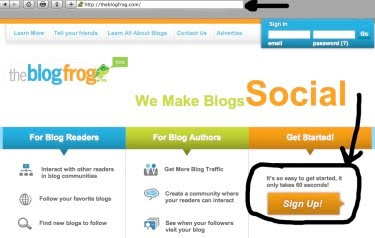
When you go to The BlogFrog Website you get a page that looks like this.
Just select 'Sign Up.'
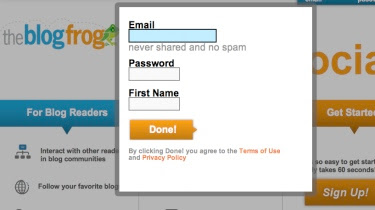
Once you click on 'Sign Up' this pop-up window appears. Here add a valid email address, your name (no spaces) - I used 'theblogguy', then create a password (write in down, you will need it later on).
Then just click 'Done.'
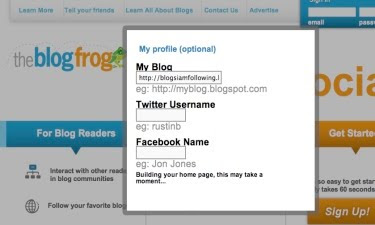
Next - you get a new pop-up window that looks like this.
At this Step, you ADD whatever Blog or Website URL Address you want BlogFrog to be installed on.
If you have Twitter and Facebook you can add them as well.
I chose only to use my Google blogspot address: http://blogsiamfollowing.blogspot.com/
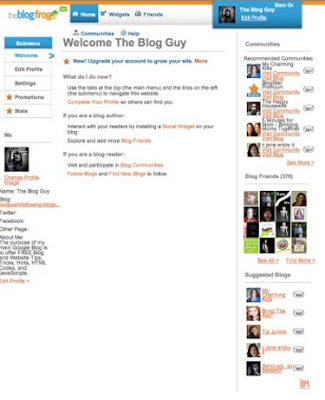
Another new pop-up window appears....
When you get here, your almost done setting up BlogFrog. Just continue to the install.
At this step, you may want to use the default codes, you can change these later.
There are two ways to install BlogFrog, I chose the one on the left. I would copy and paste both codes into a word text file so you can opt out of one and replace it with another later if you would like.
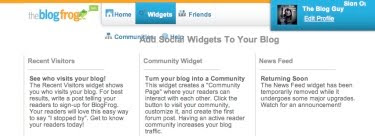
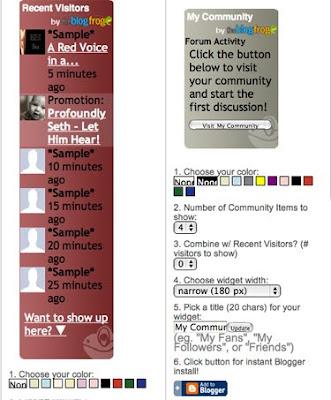
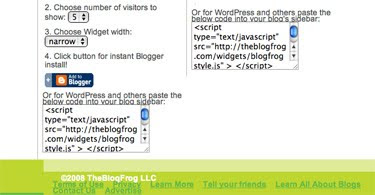
Now Copy and Paste the code into your Blog or Website.
For Google Blogs, Follow these steps:
1. Sign-in to your Google Blog.
2. Go to 'Layout.'
3. Select 'Add a Gadget.'
4. Select 'HTML / JavaScript.'
5. Copy and Paste the BlogFrog Code.
6. Save, view your Blog. Then go back to Gadgets and move your BlogFrog Community to the desired location on your Blog sidebar.
For Websites, Copy and Paste the JavaScript Code from BlogFrog and place it where you want your new community to appear on your web page. This goes between the BODY and /BODY.
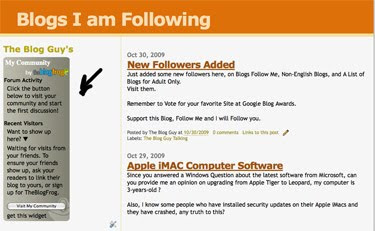
After you install BlogFrog, and move it to the desired location on your Blog sidebar or within your Website, this is how it will look. You can then invite others to join your community or they cam add you to theirs.
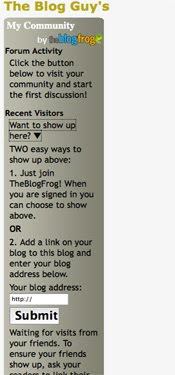
Here is an example of of how it should look on a Google Blog when you are done.
Look at the sidebar, at the bottom of my Blog, Blogs I am Following.
Click on the LINK:
Blogs I am Following
Sorry for the delay in posting this new Blogging / Website Tip.
I just got into Phoenix too late last night.
Next Blogging Tip, Trick, Hint, HTML Codes, JavaScript, and Cool Stuff will be posted on: Friday December 4, 2009.
A) I have added The BlogFrog as an additional social community to one of my Google Blogs. Try this as one option, it's easy to install and use. It seems to work well as a supplement to Google Friends Connect. You can have more than one Social Community Network on a Blog or Website.
Click on the LINK to start the installation of The BlogFrog:
The BlogFrog
When you go to The BlogFrog Website you get a page that looks like this.
Just select 'Sign Up.'

Once you click on 'Sign Up' this pop-up window appears. Here add a valid email address, your name (no spaces) - I used 'theblogguy', then create a password (write in down, you will need it later on).
Then just click 'Done.'

Next - you get a new pop-up window that looks like this.
At this Step, you ADD whatever Blog or Website URL Address you want BlogFrog to be installed on.
If you have Twitter and Facebook you can add them as well.
I chose only to use my Google blogspot address: http://blogsiamfollowing.blogspot.com/

Another new pop-up window appears....
When you get here, your almost done setting up BlogFrog. Just continue to the install.

At this step, you may want to use the default codes, you can change these later.
There are two ways to install BlogFrog, I chose the one on the left. I would copy and paste both codes into a word text file so you can opt out of one and replace it with another later if you would like.
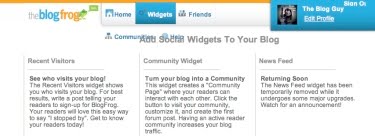


Now Copy and Paste the code into your Blog or Website.
For Google Blogs, Follow these steps:
1. Sign-in to your Google Blog.
2. Go to 'Layout.'
3. Select 'Add a Gadget.'
4. Select 'HTML / JavaScript.'
5. Copy and Paste the BlogFrog Code.
6. Save, view your Blog. Then go back to Gadgets and move your BlogFrog Community to the desired location on your Blog sidebar.
For Websites, Copy and Paste the JavaScript Code from BlogFrog and place it where you want your new community to appear on your web page. This goes between the BODY and /BODY.

After you install BlogFrog, and move it to the desired location on your Blog sidebar or within your Website, this is how it will look. You can then invite others to join your community or they cam add you to theirs.

Here is an example of of how it should look on a Google Blog when you are done.
Look at the sidebar, at the bottom of my Blog, Blogs I am Following.
Click on the LINK:
Blogs I am Following
Sorry for the delay in posting this new Blogging / Website Tip.
I just got into Phoenix too late last night.
Next Blogging Tip, Trick, Hint, HTML Codes, JavaScript, and Cool Stuff will be posted on: Friday December 4, 2009.
11/30/09
The Blog Guy Talking : Followers, Following
I have updated my Followers on the following Blogs:
1) Here on - Blogs Follow Me. Please check to make sure your SITE (blog or Web Page) has been added to the LINKS and to the appropriate Blog Roll Category.
Blogs Follow Me
2) Blogs I am Following - Make sure your SITE (Blog or Website) has been added to the alphabetical listed Blog Roll.
Blogs I am Following
3) If you have an Adult Content related Blog, please check the Blog Roll at: A List of Blogs and Websites For Adults Only.
A List of Blogs and Websites For Adults Only
4) If you have a NON English Blog, please check the Blog Roll List at: http://www.nonenglishblogs.blogspot.com/
Non English Blogs
ALL Blogs that I Follow are added to Blogs Follow Me, the Blog Links -and- to Blogs I Am Following, the Blog - Blog Roll.
If I missed anyone I apologize.
Please send me your Blog or Website Name and complete URL Address and I will add it.
Thanks for Following.
The Blog Guy
1) Here on - Blogs Follow Me. Please check to make sure your SITE (blog or Web Page) has been added to the LINKS and to the appropriate Blog Roll Category.
Blogs Follow Me
2) Blogs I am Following - Make sure your SITE (Blog or Website) has been added to the alphabetical listed Blog Roll.
Blogs I am Following
3) If you have an Adult Content related Blog, please check the Blog Roll at: A List of Blogs and Websites For Adults Only.
A List of Blogs and Websites For Adults Only
4) If you have a NON English Blog, please check the Blog Roll List at: http://www.nonenglishblogs.blogspot.com/
Non English Blogs
ALL Blogs that I Follow are added to Blogs Follow Me, the Blog Links -and- to Blogs I Am Following, the Blog - Blog Roll.
If I missed anyone I apologize.
Please send me your Blog or Website Name and complete URL Address and I will add it.
Thanks for Following.
The Blog Guy
11/29/09
This Weeks Google Blog Award Winner from - The Blog Guy
The Google Blog Award Winner for Week Ending (w/e) November 28, 2009, for the best Blog or Website is...
Click on the LINK below to see the Award Winner
USMC, Disabled American Vet
An Award will be issued Weekly.
Voting is now open for Next Weeks Winner.
Remember, you decide who wins, you can even vote for yourself.
Vote for your favorite now....at:
Click here to VOTE:
Vote for Your Favorite Now
To be eligible to VOTE you MUST Follow - one of these Sites -
Click here for the LINK:
Blogs Follow Me, the Blog
-or-
Blogs Follow Me, the Website
-or-
Blogs I am Following, the Blog
You VOTE for your favorite Blog or Website by leaving a Comment for your choice at Google Blog Awards.
To Vote:
You must have a Google Profile or have Google Friends Connect.
Simply sign-in and vote for your favorite.
You may only vote One Time, each week.
You may vote for yourself.
Only Blogs and Websites who are Followers of Blogs Follow Me, the Blog -or- Blogs Follow Me, the Website -or- Blogs I am Following, the Blog .... are eligible to win.
Previous Winners List:
The Daily QA
The Reformed Hooker
Funny Daily Jokes
Selling Out The USA
Ladies with Humor
Funny Head Stones
Just How Stupid
Patton Doctrine
Daily Gun Pictures
Daily Sign Post
Next Blogging Tip, Trick, Hint, HTML Codes, JavaScript, and Cool Stuff will be posted on: Tuesday December 1, 2009.
Remember Following is only recognized by Google as significant when both parties reciprocate.
Do you have a Blogging Question?
Then email me or simply post your question as a comment.
Please support my efforts, Follow this Blog (blogsfollowme.blogspot.com).
Follow me and I will Follow you
Always Look for The Blog Guy's Profile Icon Picture:

Don't forget to read my post, and follow me on Twitter.
Thanks for your support,
The Blog Guy
Click on the LINK below to see the Award Winner
USMC, Disabled American Vet
An Award will be issued Weekly.
Voting is now open for Next Weeks Winner.
Remember, you decide who wins, you can even vote for yourself.
Vote for your favorite now....at:
Click here to VOTE:
Vote for Your Favorite Now
To be eligible to VOTE you MUST Follow - one of these Sites -
Click here for the LINK:
Blogs Follow Me, the Blog
-or-
Blogs Follow Me, the Website
-or-
Blogs I am Following, the Blog
You VOTE for your favorite Blog or Website by leaving a Comment for your choice at Google Blog Awards.
To Vote:
You must have a Google Profile or have Google Friends Connect.
Simply sign-in and vote for your favorite.
You may only vote One Time, each week.
You may vote for yourself.
Only Blogs and Websites who are Followers of Blogs Follow Me, the Blog -or- Blogs Follow Me, the Website -or- Blogs I am Following, the Blog .... are eligible to win.
Previous Winners List:
The Daily QA
The Reformed Hooker
Funny Daily Jokes
Selling Out The USA
Ladies with Humor
Funny Head Stones
Just How Stupid
Patton Doctrine
Daily Gun Pictures
Daily Sign Post
Next Blogging Tip, Trick, Hint, HTML Codes, JavaScript, and Cool Stuff will be posted on: Tuesday December 1, 2009.
Remember Following is only recognized by Google as significant when both parties reciprocate.
Do you have a Blogging Question?
Then email me or simply post your question as a comment.
Please support my efforts, Follow this Blog (blogsfollowme.blogspot.com).
Always Look for The Blog Guy's Profile Icon Picture:

Don't forget to read my post, and follow me on Twitter.
Thanks for your support,
The Blog Guy
11/23/09
Google Blogging Tip # 91: Another Type of Scrolling Marquee
Q) I noticed a cool scrolling marquee on your other blog, Blogs I am Following, but I didn't see it in your Archived Blog and Website Tips. Could you be so kind as to furnish the code?
A) Absolutely, to obtain the Flash Installation Code from The Blog Guy's Website. Just follow the instructions and Link below.
Click on the LINK:
to get Flash Code from The Blog Guy for your Blog or Website:
Another Type of Scrolling Marquee
How to install the Marquee...
It's simple, just:
Copy and paste the code as instructed.
See how it works, there are two examples on the Web Page....
Installing the Code on a Google blogspot Blog Sidebar (column):
Steps:
1/ - Sign-in to your Blog.
2/ - Go to 'Layouts.'
3/ - Click on 'Add Gadgets.'
4/ - Select 'HTML / JavaScript.'
5/ - Copy and Paste the Flash Code from The Blog Guy's Web Page.
6/ - Save, View Blog, Refresh Screen, Move to desired location, sign-out.
Installing the Code on a Web Page:
1/ - Copy and Paste the Flash Code from The Blog Guy's Web Page into the desired location between BODY and /BODY.
2/ - Save, View Web Page, Move as desired or needed.
Do you have a Blogging Question?
Please email me or just post it to my latest comment section on any Blogging Tip. I read all my comments.
Note - I will get to all the requests both by emails and comments people have submitted. I take them in order.
The Blog Guy's next Blogging Tip, Trick, Hint, HTML Codes, and JavaScript will be posted on Tuesday December 1, 2009. Also I will be in Phoenix/Scottsdale Arizona that entire week on business.
Please Follow this Blog and I will Follow You!
Also, please Follow Me on Twitter, go to the bottom of this Blogs sidebar and click on my Twitter Page, sign-in to your Twitter Account and start Following Me. I will in return Follow you.
Thanks,
The Blog Guy
A) Absolutely, to obtain the Flash Installation Code from The Blog Guy's Website. Just follow the instructions and Link below.
Click on the LINK:
to get Flash Code from The Blog Guy for your Blog or Website:
Another Type of Scrolling Marquee
How to install the Marquee...
It's simple, just:
Copy and paste the code as instructed.
See how it works, there are two examples on the Web Page....
Installing the Code on a Google blogspot Blog Sidebar (column):
Steps:
1/ - Sign-in to your Blog.
2/ - Go to 'Layouts.'
3/ - Click on 'Add Gadgets.'
4/ - Select 'HTML / JavaScript.'
5/ - Copy and Paste the Flash Code from The Blog Guy's Web Page.
6/ - Save, View Blog, Refresh Screen, Move to desired location, sign-out.
Installing the Code on a Web Page:
1/ - Copy and Paste the Flash Code from The Blog Guy's Web Page into the desired location between BODY and /BODY.
2/ - Save, View Web Page, Move as desired or needed.
Do you have a Blogging Question?
Please email me or just post it to my latest comment section on any Blogging Tip. I read all my comments.
Note - I will get to all the requests both by emails and comments people have submitted. I take them in order.
The Blog Guy's next Blogging Tip, Trick, Hint, HTML Codes, and JavaScript will be posted on Tuesday December 1, 2009. Also I will be in Phoenix/Scottsdale Arizona that entire week on business.
Please Follow this Blog and I will Follow You!
Also, please Follow Me on Twitter, go to the bottom of this Blogs sidebar and click on my Twitter Page, sign-in to your Twitter Account and start Following Me. I will in return Follow you.
Thanks,
The Blog Guy
11/22/09
This Weeks Google Blog Award Winner from - The Blog Guy
The Google Blog Award Winner for Week Ending (w/e) November 21, 2009, for the best Blog or Website is...
Click on the LINK below to see the Award Winner
The Daily QA
An Award will be issued Weekly.
Voting is now open for Next Weeks Winner.
Remember, you decide who wins, you can even vote for yourself.
Vote for your favorite now....at:
Click here to VOTE:
Vote for Your Favorite Now
To be eligible to VOTE you MUST Follow - one of these Sites -
Click here for the LINK:
Blogs Follow Me, the Blog
-or-
Blogs Follow Me, the Website
-or-
Blogs I am Following, the Blog
You VOTE for your favorite Blog or Website by leaving a Comment for your choice at Google Blog Awards.
To Vote:
You must have a Google Profile or have Google Friends Connect.
Simply sign-in and vote for your favorite.
You may only vote One Time, each week.
You may vote for yourself.
Only Blogs and Websites who are Followers of Blogs Follow Me, the Blog -or- Blogs Follow Me, the Website -or- Blogs I am Following, the Blog .... are eligible to win.
Previous Winners List:
The Reformed Hooker
Funny Daily Jokes
Selling Out The USA
Ladies with Humor
Funny Head Stones
Just How Stupid
Patton Doctrine
Daily Gun Pictures
Daily Sign Post
Next Blogging Tip, Trick, Hint, HTML Codes, JavaScript, and Cool Stuff will be posted on: Monday November 23, 2009.
Remember Following is only recognized by Google as significant when both parties reciprocate.
Do you have a Blogging Question?
Then email me or simply post your question as a comment.
Please support my efforts, Follow this Blog (blogsfollowme.blogspot.com).
Follow me and I will Follow you
Always Look for The Blog Guy's Profile Icon Picture:
Don't forget to read my post, and follow me on Twitter.
Thanks for your support,
The Blog Guy
Click on the LINK below to see the Award Winner
The Daily QA
An Award will be issued Weekly.
Voting is now open for Next Weeks Winner.
Remember, you decide who wins, you can even vote for yourself.
Vote for your favorite now....at:
Click here to VOTE:
Vote for Your Favorite Now
To be eligible to VOTE you MUST Follow - one of these Sites -
Click here for the LINK:
Blogs Follow Me, the Blog
-or-
Blogs Follow Me, the Website
-or-
Blogs I am Following, the Blog
You VOTE for your favorite Blog or Website by leaving a Comment for your choice at Google Blog Awards.
To Vote:
You must have a Google Profile or have Google Friends Connect.
Simply sign-in and vote for your favorite.
You may only vote One Time, each week.
You may vote for yourself.
Only Blogs and Websites who are Followers of Blogs Follow Me, the Blog -or- Blogs Follow Me, the Website -or- Blogs I am Following, the Blog .... are eligible to win.
Previous Winners List:
The Reformed Hooker
Funny Daily Jokes
Selling Out The USA
Ladies with Humor
Funny Head Stones
Just How Stupid
Patton Doctrine
Daily Gun Pictures
Daily Sign Post
Next Blogging Tip, Trick, Hint, HTML Codes, JavaScript, and Cool Stuff will be posted on: Monday November 23, 2009.
Remember Following is only recognized by Google as significant when both parties reciprocate.
Do you have a Blogging Question?
Then email me or simply post your question as a comment.
Please support my efforts, Follow this Blog (blogsfollowme.blogspot.com).
Always Look for The Blog Guy's Profile Icon Picture:
Don't forget to read my post, and follow me on Twitter.
Thanks for your support,
The Blog Guy
11/18/09
Google Blogging Tip # 90: Single Player Music JavaScript
Q) On your other Blog - Blogs I am Following you posted on November 3, 2009 a response to a different Bloggers Question concerning 'How to Get The Multi Music Player Jukebox' to play only one song at a time, and allow the music player to be used more than once on a Google Blog. I understand why it wont work but but I am having problems with the code. I am sure it's me, so could you just please issue the entire code / script you want me to use?
Note: I made all the other changes to my Blog you indicated.
A) Absolutely I'd be glad to.
Click on the LINK:
to get JavaScript Music Jukebox Player Code from The Blog Guy for your Blog or Website:
Installing a Single Music Player
To Install this JavaScript on a Google Blog, follow these steps:
1) Sign-in to your Google Blog
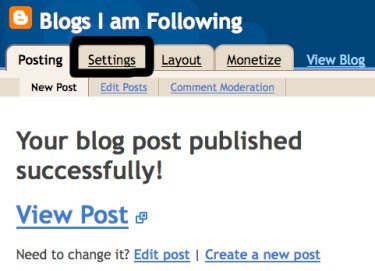
2) From Post or Dashboard go to 'Settings'
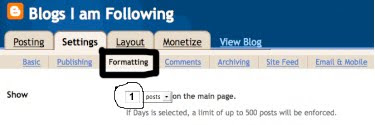
3) Select 'Formatting'
4) Change the first line, 'show' to '1' post only (see the pictures below)
5) Save
6) Go to POST, copy and paste The Blog Guy's Music Song Player File JavaScript Code, change the player using a complete URL address.
7) In the event you want to use only one player file, and it is not a Midi (.mid) sound file you will have to apply the extension...example: .wav -or- .mp3
Note: This player plays most Midi, Wav, and mp3 sound files
If you want to play only mp3 files then use the player shown on Google Tip # 55.
See the pictures below for further help and clarification.
How to install the JavaScript on a Web Page?
1/ - Copy and Paste the JavaScript Code from The Blog Guy's Web Page into the desired location between BODY and /BODY.
2/ - Save, View Web Page, Move as desired or needed.
Do you have a Blogging Question?
Please email me or just post it to my latest comment section on any Blogging Tip. I read all my comments.
NOTE: I will catch up on all my FOLLOWERS both on my Blogs and Twitter this weekend. I have been really busy at work making a lot of one day trips.
Look for The Blog Guy's next Blogging Tip, Trick, Hint, HTML Codes, and JavaScript coming soon.
Please Follow this Blog and I will Follow You!
Also, please Follow Me on Twitter, go to the bottom of this Blogs sidebar and click on my Twitter Page, sign-in to your Twitter Account and start Following Me. I will in return Follow you.
Thank you,
The Blog Guy
Note: I made all the other changes to my Blog you indicated.
A) Absolutely I'd be glad to.
Click on the LINK:
to get JavaScript Music Jukebox Player Code from The Blog Guy for your Blog or Website:
Installing a Single Music Player
To Install this JavaScript on a Google Blog, follow these steps:
1) Sign-in to your Google Blog
2) From Post or Dashboard go to 'Settings'
3) Select 'Formatting'
4) Change the first line, 'show' to '1' post only (see the pictures below)
5) Save
6) Go to POST, copy and paste The Blog Guy's Music Song Player File JavaScript Code, change the player using a complete URL address.
7) In the event you want to use only one player file, and it is not a Midi (.mid) sound file you will have to apply the extension...example: .wav -or- .mp3
Note: This player plays most Midi, Wav, and mp3 sound files
If you want to play only mp3 files then use the player shown on Google Tip # 55.
See the pictures below for further help and clarification.


How to install the JavaScript on a Web Page?
1/ - Copy and Paste the JavaScript Code from The Blog Guy's Web Page into the desired location between BODY and /BODY.
2/ - Save, View Web Page, Move as desired or needed.
Do you have a Blogging Question?
Please email me or just post it to my latest comment section on any Blogging Tip. I read all my comments.
NOTE: I will catch up on all my FOLLOWERS both on my Blogs and Twitter this weekend. I have been really busy at work making a lot of one day trips.
Look for The Blog Guy's next Blogging Tip, Trick, Hint, HTML Codes, and JavaScript coming soon.
Please Follow this Blog and I will Follow You!
Also, please Follow Me on Twitter, go to the bottom of this Blogs sidebar and click on my Twitter Page, sign-in to your Twitter Account and start Following Me. I will in return Follow you.
Thank you,
The Blog Guy
11/15/09
This Weeks Google Blog Award Winner from - The Blog Guy
The Google Blog Award Winner for Week Ending (w/e) November 14, 2009, for the best Blog or Website is...
Click on the LINK below to see the Award Winner
The Reformed Hooker
An Award will be issued Weekly.
Voting is now open for Next Weeks Winner.
Remember, you decide who wins, you can even vote for yourself.
Vote for your favorite now....at:
Click here to VOTE:
Vote for Your Favorite Now
To be eligible to VOTE you MUST Follow - one of these Sites -
Click here for the LINK:
Blogs Follow Me, the Blog
-or-
Blogs Follow Me, the Website
-or-
Blogs I am Following, the Blog
You VOTE for your favorite Blog or Website by leaving a Comment for your choice at Google Blog Awards.
To Vote:
You must have a Google Profile or have Google Friends Connect.
Simply sign-in and vote for your favorite.
You may only vote One Time, each week.
You may vote for yourself.
Only Blogs and Websites who are Followers of Blogs Follow Me, the Blog -or- Blogs Follow Me, the Website -or- Blogs I am Following, the Blog .... are eligible to win.
Previous Winners List:
Funny Daily Jokes
Selling Out The USA
Ladies with Humor
Funny Head Stones
Just How Stupid
Patton Doctrine
Daily Gun Pictures
Daily Sign Post
Next Blogging Tip, Trick, Hint, HTML Codes, JavaScript, and Cool Stuff will be posted on: Wednesday November 18, 2009.
Do you have a Blogging Question?
Then email me or simply post your question as a comment.
Please support my efforts, Follow this Blog (blogsfollowme.blogspot.com).
Follow me and I will Follow you
Always Look for The Blog Guy's Profile Icon Picture:
Don't forget to read my post, and follow me on Twitter.
Thanks for your support,
The Blog Guy
Click on the LINK below to see the Award Winner
The Reformed Hooker
An Award will be issued Weekly.
Voting is now open for Next Weeks Winner.
Remember, you decide who wins, you can even vote for yourself.
Vote for your favorite now....at:
Click here to VOTE:
Vote for Your Favorite Now
To be eligible to VOTE you MUST Follow - one of these Sites -
Click here for the LINK:
Blogs Follow Me, the Blog
-or-
Blogs Follow Me, the Website
-or-
Blogs I am Following, the Blog
You VOTE for your favorite Blog or Website by leaving a Comment for your choice at Google Blog Awards.
To Vote:
You must have a Google Profile or have Google Friends Connect.
Simply sign-in and vote for your favorite.
You may only vote One Time, each week.
You may vote for yourself.
Only Blogs and Websites who are Followers of Blogs Follow Me, the Blog -or- Blogs Follow Me, the Website -or- Blogs I am Following, the Blog .... are eligible to win.
Previous Winners List:
Funny Daily Jokes
Selling Out The USA
Ladies with Humor
Funny Head Stones
Just How Stupid
Patton Doctrine
Daily Gun Pictures
Daily Sign Post
Next Blogging Tip, Trick, Hint, HTML Codes, JavaScript, and Cool Stuff will be posted on: Wednesday November 18, 2009.
Do you have a Blogging Question?
Then email me or simply post your question as a comment.
Please support my efforts, Follow this Blog (blogsfollowme.blogspot.com).
Always Look for The Blog Guy's Profile Icon Picture:
Don't forget to read my post, and follow me on Twitter.
Thanks for your support,
The Blog Guy
Subscribe to:
Posts (Atom)





 Chinese
 French
 German
 Italian
 Japanese
 Korean
 Russian
 Spanish
