Showing posts with label The Blog Guy Talking. Show all posts

3/2/10

Blogging Tips -Auto Blogging (update)


This is an UPDATE


At this time I can only get-
http://www.bloggerautofollow.com/
one of two different Blogs I tried to partially work.

It is supposed to be a FREE Service.
Attempt # 1 has been going on over a week now and I cannot even get the Password to accept, even though I am registered and I changed the password as an attempt to fix the problem.

URGENT NOTICE to my Google Friend Connect Followers:
==>Attempt # 2 today on a different Blog the password worked, and it appears that the 'Keywords' partially respond, this is probably more of a Google Search Engine thing.
As for the 'Unfollow Blog' portion, this REMOVED ALL of My Blog Followers.
That's a real problem.
Now I have to ADD back all my Followers, so if you see I stopped Following you, it was not on purpose, and I will re-add those who are currently following me - please be patient, this will take awhile.

At this moment, the answer is Do Not Use Auto-Blogging.
They have an online chat but its never working so I will try tomorrow to resolve these issues.

Stand By -
Important Note to My Readers and Followers:
I test everything before I recommend use by my readers, So If I am having a problem or the Widget fails so NOT use it.

2/25/10

Google Blogging Tip # 102: Adding a Rating System Gadget to Your Blog (This Replaces Tip # 93).

Important Widget Change


Originally on Tip # 93, Adding a Rating System Gadget to Your Blog or Website.
Found at: http://blogsfollowme.blogspot.com/2009/12/google-blogging-tip-93-adding-rating.html
I suggested using Blogorator. For awhile this worked well. Then several people last week complained it failed to work and Blogorator lost their files. This also happened on my Blog, Blogs I am Following, and Blogorator failed to fix the issue after 5-days even though I notified them.
Note: It is important to remember that these 'Widgets' may not keep up with the latest technology by Blogs such as Google, Wordpress, etc. They are Third Party Program Designs.
Originally I selected this Rating System because it worked on both Blogs and Websites and rated the over all page (Blog or Site) versus the individual posting.
I am no longer endorsing Blogorator.
Website Users, Designers, Programmers, Administrators, and Blog Owners should avoid installing the Widget from Blogorator.

New Blog Rating Widget Tool

Click on the LINK:
Adding a Rating System to Your Blog
//// ~ \\\\
Before Starting please note that this Widget does not work on Websites / Web Pages.
If after registering the Widget and you are unable to go to 'Setting's to remove the 'Recommendations' remove the Widget from your Blog, sign-out and try installing the Widget later on.
//// ~ \\\\

Follow these step by step instructions.
Note - Pay close attention, don't miss any steps.
Open the following and leave open till finished:
- Your email account for your Blog.
- Open Outbrain Website.
- When Outbrain loads your Blog, leave that open as well.

Step # 1:
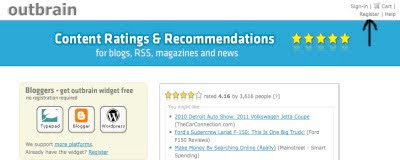
You are at the 'Outbrain' Homepage. In the upper right corner, click on 'Register.'
See Picture Below:

Step # 2:
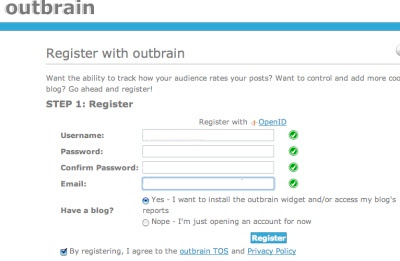
Once you click on register 'Outbrain' you will get a new window. Fill in the required information.
See Picture Below:

Step # 3:
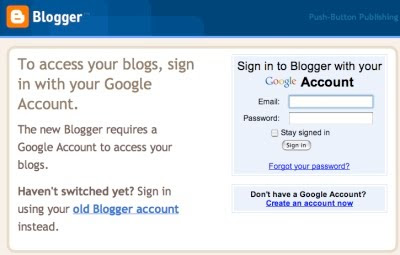
Sign-in to your Blog Account, shown here is Google...
See Picture Below:

Step # 4:
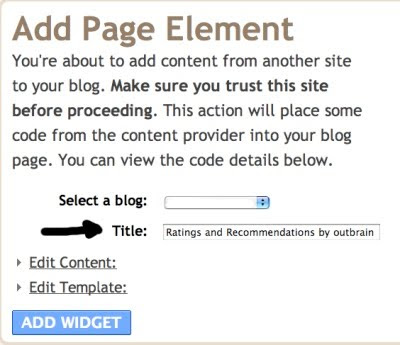
After signing into your Blog, you will see this....
See Picture Below:

Step # 5:
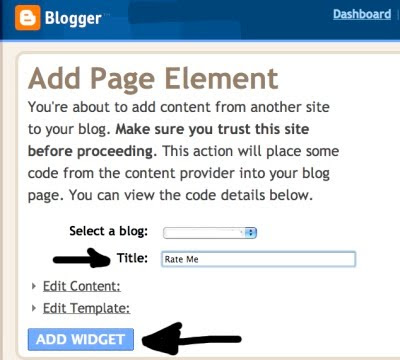
Here all I did was 'Change' the title, I recommend you do this, but it is not necessary.
Leave the other settings alone, just click on 'Add Widget.'
See Picture Below:

Step # 6:
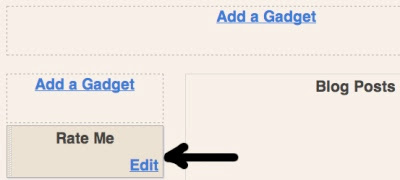
If you have a Google Blog (blogspot) 'Outbrain' set-up will take you to this location in Layouts. If you have a different type of Blog such as Wordpress it should take you to something similar. Just simply ignore this, and go to your Blog's main display page.
See Picture Below:

Step # 7:
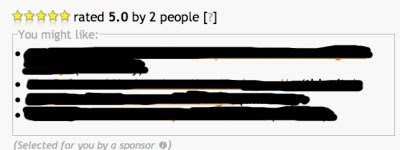
Initial installation produces this. The following steps will remove all the links beneath your Blog Rating. If you want these here, Stop, do not proceed any further. I recommend, you not have these on your Blog Postings, and continue with the complete set-up of the 'Outbrain Rating System.'
Note: I have blacked out those that appeared on my Blog.
See Picture Below:

Step # 8:
Respond to Outbrain in your email and verify your 'outbrain' account....
See Picture Below:

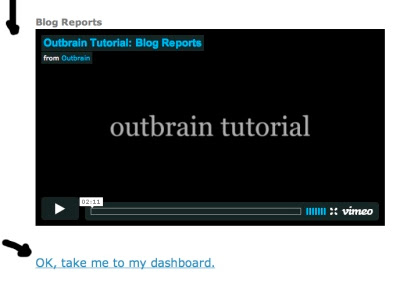
Step # 9:
In this step you will see a message that looks like this...
See Picture Below:

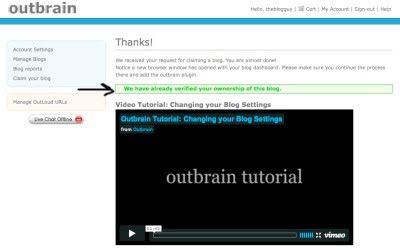
Step # 10:
In this step you should get a message that Outbrain has verified your email. Click on the setting, 'Manage Blogs', to the upper left to continue....
See Picture Below:

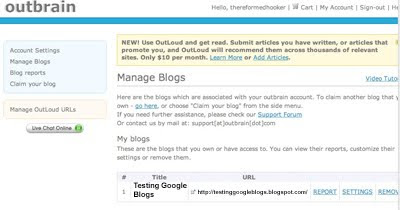
Step # 11:
In this step you should see your Blog's URL Address.
Next to the URL you should see, 'Settings' click on it.
See Picture Below:

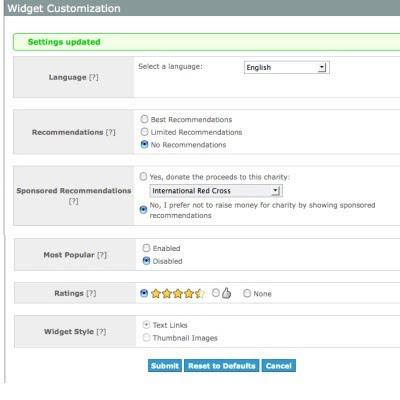
Step # 12:
Change the 'Settings' exactly as shown.
See Picture Below:

Step # 13:
When the Widget has been installed, and the setting changed, the 'Rating' should now look like this...
See Picture Below:
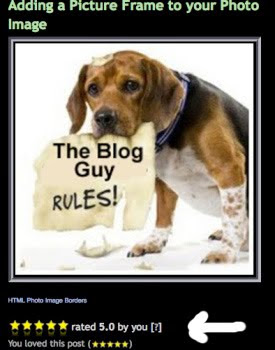

Step # 14:
After you have completed installing the widget go back to your email, and there should be an explanation of how the Rating System works, part will look like this...
See Picture Below:
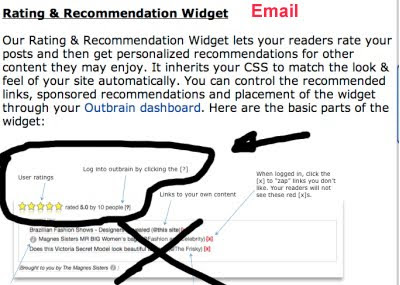

Step # 15:
Now sign out of-
Outbrain.
Your Blog.
Your Email Account.
View your Blog without signing in.
Test the Rating System.
Refresh your page, look and see if the rating worked on your Blog.

Step # 16:
To See this work on my Blog, Click on the LINK:
Testing Google Blogs

Step # 17:
If you have multiple Blogs under on email account, you can sign back into 'Outbrain' and select the ones that you want added to have a Rating applied. Remember, this Rating Widget (gadget) rates each individual Posting, not the entire Blog.

= = = = = = = =

Most Recent Google Blog Award Winner:
The Google Blog Award Winner for Week Ending (w/e) February 20, 2010, for the best Blog or Website was...
Click on the LINK below to see the Award Winner
Unique Car Productions

Don't forget to vote for your favorite Blog or Site for the Google Blog Award, you can vote for yourself. Voting closes every Saturday at 11:00pm Eastern Standard Time, USA.


Thanks for visiting Blogs Follow Me (blogsfollowme), prsented by: The Blog Guy.
Please support my efforts, Follow this Blog and I will Follow You.

As previously mentioned, I have created a FaceBook Page, here is the Link:
The Blog Guy's Facebook Page

I also created a Blog for my FaceBook Page Friends to get a Link by joining my page, here is the Link to my new Google Blog:
Blogs by Facebook


Coming next, Auto-Blogging
IMPORTANT: Many have ask me about Auto-Blogging.
This will be posted Tuesday, March 02, 2010.


2/14/10

Google Blogging Tip # 101: How to Add a Picture Frame Border to Your Blog or Website Pictures

Q) - I would like to make my site photos more interesting, any suggestions?

A) - Yes, one way is to add borders to your picture. Follow the LINK to The Blog Guy's Web Page and see how to install these on your Blog or Website.
Email Inquiries - 7

Click on the LINK:
to get the HTML Code from The Blog Guy for your Blog or Web Page:

How to Add a Picture Frame Border to Your Blog or Website Pictures (Photo Images)


===> IMPORTANT: Many have ask me about Auto-Blogging.
I am evaluating this now including how to use an auto-blogger program, and the pros and cons of using one.
This will be the next Blog and Website Tip I post, look for it soon.


Most Recent Google Blog Award Winner:
The Google Blog Award Winner for Week Ending (w/e) February 13, 2010, for the best Blog or Website was...
Click on the LINK below to see the Award Winner
Cartoon Daily

Don't forget to vote for your favorite Blog or Site for the Google Blog Award, you can vote for yourself. Voting closes every Saturday at 11:00pm Eastern Standard Time, USA.


Thanks for visiting.
Please support my efforts, Follow this Blog and I will Follow You.

I have created a FaceBook Page, here is the Link:
The Blog Guy's Facebook Page

I also created a Blog for my FaceBook Page Friends to get a Link by joining my page, here is the Link to my new Google Blog:
Blogs by Facebook


Coming soon is the next Posting Tip, Trick, Hint, HTML Codes, JavaScript, and Cool Fun Stuff.

2/8/10

Google Blogging Tip # 100: Google Blogs, Substituting a Picture for the Title on a Post

Q) I have tried repeatedly to add an HTML Code within the 'Title' bar of Google blogspot Blog 'New Post' and cannot get it to work. I want to substitute a Picture for the Title on my Post. I have seen this done on other blogs.
How do you do this?

A) Google blocks the use of HTML and JavaScript within its Title Block for Posts. To avoid using the Layout, and 'Edit HTML' function, there is a simple way to accomplish this. Just don't use the 'Title Bar' at all. Also, do not use the Link Bar if you have it enabled.
Place your picture at the top of the empty block where you would add any text, pictures, or video. I believe this will accomplish what you are trying to do. I recommend the picture image be 375 pixels wide x 55 pixels high.
Email Inquiries - 11

See the picture below:


See the sample of how it's done and should look like.
Click on the Link:
Testing Google Blogs


Most Recent Google Blog Award Winner:
The Google Blog Award Winner for Week Ending (w/e) February 06, 2010, for the best Blog or Website was...
Click on the LINK below to see the Award Winner
Condom Facts

Don't forget to vote for your favorite Blog or Site for the Google Blog Award, you can vote for yourself. Voting closes every Saturday at 11:00 PM Eastern Standard Time, USA.


Thanks for visiting.
Please support my efforts, Follow this Blog, and I will Follow you.

The next Posting Tip, Trick, Hint, HTML Codes, JavaScript, and Cool Fun Stuff is coming very soon.

I am current on all my Followers. If I missed anyone I apologize leave me a comment and I will add you.
Thanks,
The Blog Guy

1/6/10

Google Blogging Tip # 97: Adding a Horizontal Menu Bar to Your Website or Blog

Q/ - I want to add a Menu Bar to my Blog and Website, can you tell me how to do this?

A/ - Yes, Here is a 'Horizontal Menu Bar' that works on both Blogs and Web Pages.
Email Inquiries: 30
Link:
Horizontal Menu Bar

The instructions for installing the 'Horizontal Menu Bar' provided by The Blog Guy are on my web page. There is also an example of how it looks and works on both a Blog and Web Page, visit first before installing.


I am still catching up with all my Twitter Followers, Twitter Pages.

You can expect lots more Free Blog and Website Tips, Tricks, Hints, Fun Stuff, HTML Codes, and JavaScripts for your Blog and Website.

Support my efforts to bring you FREE stuff, please Follow my Google Blog.

Don't forget to follow me on Twitter.

I noticed not many people are voting for the Google Blog Award issued each week. Check it out, vote today, voting for this weeks winner closes at 11:00pm Saturday East Coast, USA, time. Vote for yourself, or vote for your favorite Blog or Site. If you don't vote you cannot win.

Stop over at :
Blogs I am Following, to see many questions people ask on all sorts of subjects about Blogging, Websites, How to get Free Downloads, and more ...
There is a new posting January 5, 2010-
Click on the LINK:
Blogs I am Following


Thanks for visiting.
Next Posting Tip, Trick, Hint, HTML Codes, JavaScript, and Cool Fun Stuff coming soon.

1/2/10

Google Blogging Tip # 96: Updating How to Use Your Google Blog

Q/ - I am getting a lot of SPAM in my Google blogspot Blog Comments. How do I stop this?

A/ - I got many emails recently on this subject. One follower here said he got nearly 100 spam adult sites on his Blog.
Spammers are getting smarter. They are using automated robots to search Google Blogs that have open comment settings.
See the reference below:
Reference: Google Blogging Tip # 14 from The Blog Guy,
Link:
Google Blogging Tip # 14

As a result you should change your settings to use :
Show Word Verification on Comments.
This will stop automated spam.
See the pictures below for NEW recommended settings on your Settings, Comments - from The Blog Guy.
I still do not recommend anyone using 'Comment Moderation.'
Email Inquiries: 14

Optimum Settings Update for your Google Blog:
Sign into your Blog, you should be at the Dashboard.
Select 'Settings.'
Select 'Comments.'
I have broken this page down into 3 parts.
On this page, set each of your settings as follows for optimum performance-
Make sure the settings are set as follows:


Hello, Happy New Year, and yes I am back.
Took some private time off.
I will be catching up with all my Followers, Twitter Pages, and posting many new Blog and Website Tips, Tricks, Hints, Fun Stuff, HTML Codes, and JavaScripts.
Lots of Free New things coming for use on your Blog and Website.

Support my efforts to bring you FREE stuff, please Follow my Google Blog.

Don't forget to follow me on Twitter.

I noticed not many people are voting for the Google Blog Award this week. Check it out, vote today, voting for this weeks winner closes at 11:00pm tonight East Coast, USA, time. Vote for yourself, or vote for your favorite Blog or Site. If you don't vote you cannot win.

Stop over at :
Blogs I am Following, to see many questions people ask on all sorts of subjects about Blogging, Websites, How to get Free Downloads, and more ...
There is a new posting today-
Click on the LINK:
Blogs I am Following


The Google Blog Award Winner for Week Ending (w/e) January 02, 2010, for the best Blog or Website was...
Click on the LINK below to see the Award Winner
We Wont Take It Anymore


The Google Blog Award Winner for Week Ending (w/e) December 26, 2009, for the best Blog or Website was...
Click on the LINK below to see the Award Winner
Political Voodoo Doll

Thanks for visiting.
Next Posting Tip, Trick, Hint, HTML Codes, JavaScript, and Cool Fun Stuff will be posted on: Wednesday January 06, 2010.

11/30/09

The Blog Guy Talking : Followers, Following

I have updated my Followers on the following Blogs:

1) Here on - Blogs Follow Me. Please check to make sure your SITE (blog or Web Page) has been added to the LINKS and to the appropriate Blog Roll Category.
Blogs Follow Me


2) Blogs I am Following - Make sure your SITE (Blog or Website) has been added to the alphabetical listed Blog Roll.
Blogs I am Following


3) If you have an Adult Content related Blog, please check the Blog Roll at: A List of Blogs and Websites For Adults Only.
A List of Blogs and Websites For Adults Only


4) If you have a NON English Blog, please check the Blog Roll List at: http://www.nonenglishblogs.blogspot.com/
Non English Blogs

ALL Blogs that I Follow are added to Blogs Follow Me, the Blog Links -and- to Blogs I Am Following, the Blog - Blog Roll.

If I missed anyone I apologize.
Please send me your Blog or Website Name and complete URL Address and I will add it.

Thanks for Following.
The Blog Guy

10/28/09

The Blog Guy Talking

Just some simple reminders that will help everyone:

First, Blogs are a form of social networking. Many people use them in an attempt to sell a product or service. The best way to do this is get a .com domain name and a website. The Blog should only be used to augment your Website. For reasons covered in my previous Blog Tips such as Google Blogging Tip # 75: Ten (10) Search Engine Optimization (SEO) Myths and Facts for Blogs, Part 1.

Next, If you Follow one of my many Blogs, I in turn follow yours. As a courtesy I add all your Blogs listed under your Profile called 'My Blogs.' These are added to The Blog Guy's Blog Roll by Category and Links on : Blogs Follow Me, the Blog. As a follower they are also added to the Blog Roll List (which is in alphabetical order) on : Blogs I am Following, the Blog. If they are Non English Blogs they are posted on : Blogs I an Following, the Blog and on : Non English Blogs, the Blog. If they are Adult Content Blogs, they are posted on : A List of Blogs for Adults Only, the Blog.

Next, Following People is a way to get your Blog Noticed and when you reciprocate then this adds to both Bloggers Ratings with Google. Note for this to work, both must follow each other.

Next, Please report any down Links or Blogs removed by Google, or Blogs that change status such as requiring someone to sign-in to view the Blog. These will be removed from my LINKS and Blog Roll List. Just send me an email at:
alternate4craigslist@yahoo.com
-or-
Simply leave me a comment on the latest post and I will handle it.

Next, If you don't want anyone Following your Blog, then remove FOLLOWERS by simply -
Sign-in to your Blog.
Go to View Blog.
Look for Followers.
Look for the * just below Followers.
Click on the *
You will get a pop-up window.
Simply click on REMOVE.

Next, If you want to STOP someone from Following your Blog, then follow these steps-
Sign-in to your Blog.
You should be at the Dashboard.
Go to the bottom of the page, click on 'Manage.'
Find the Blog you want to remove.
Click on 'Settings.'
Click on 'Stop Following.'
Save / Done.
Wait for the Blog to recycle and come back to your LIST of Blogs you are following.
Then proceed to the next Blog if there are more than one or just go to the top of the page and click on 'Dashboard.'

Next, if you were Following one of my Blogs and no longer want your blog listed then send me an email. This email MUST include the name of the Blog and complete URL Address. It must also state which Blog it is on. Please include how it is listed (by name/description) if it appears on anyone of of The Blog Guy's Blog Roll List and/or in the LINKS. Without this I just don't have the time to search them out. As for Followers you may have noticed Google has been experiencing intermittent problems with Followers. So I may appear on your Blog but you may not appear on mine. If you remove or block a Blog it should catch up to the blogger following you in a couple of days.

Finally, as stated previously, I am going through all my Blogs and checking my Followers. This will take some time. But if you are listed in my Links or Blog Rolls and are no longer Following me, then you will be removed. Sorry about that, but as stated, Followers really only work when each party participates and reciprocates.

Thanks for understanding.
Have a good week.
regards,
The Blog Guy

Next Free Blog Tip, Trick, Hint, HTML Code, and JavaScript will be posted Saturday, October 31, 2009. Don't forget to vote for your favorite Blog or Website at the Google Blog Awards.

Sorry, I worked late tonight so I didn't get to updating my latest Followers on Google or Twitter as promised, I will try again tomorrow.


10/24/09

This Blog:

I am doing some maintenance on this Blog Page, while traveling back from Phoenix/Scottsdale Arizona to home.
The changes should appear Sunday, October 25, 2009.

The NEXT Blog and Website Tip, Trick, Hint, HTML Code, and JavaScript will be published on Monday, October 26, 2009.

I have REMOVED 17 Blogs from my Followers List, Blog Rolls, and Links because they were no longer following this Blog, Blogs Follow Me.
In the event I removed your Blog or Website from my Follow List, Blog Rolls, and Links in error, please send me an email with your Blog or Website Name and complete URL Address and I will re-add them.
Thank you - regards,
The Blog Guy