8/10/09

Google Blogging Tip # 60: New HTML Code for Blogs and Websites

ADDING 'Blinking Text' to your Blog or Web Page.

Q/ - I noticed on your Blog that some of the TEXT Lines where blinking. How do I add this feature?

A/ - Simple, the HTML Code is in the picture below...
Important Notation: This feature WILL WORK only in Firefox for Windows; Firefox for iMAC (Apple); and Windows XP.
It will NOT work in iMAC (Apple Safari); or Windows Vista.
However, where it does not work it simply appears as plain TEXT. So there is no harm in using the simple HTML Coding feature.
Email Inquiries: 3


Here is an example of how it looks:
Please Support This BLOG, Follow Me


Remember, to be followed you have to follow others.
Also, don't forget I offer FREE Web Storage for your files at my website for:
FLASH (.swf) Files
Animation (.gif) Files
Midi (.mid) Music Files
WAV (.wav) Sound and Music Files

8/6/09

Google Blogging Tip # 59: Adding Sound to Your Google Profile

How to ADD a 'Sound File Clip' to Your Profile:

Steps:
1. Find a WAV (.wav) File Sound Clip you want to use.
2. You will need a source, if you do not a have a sound file storage source, you can upload your WAV File for FREE to The Blog Guy's Website by attaching the WAV (.wav) file to your email and sending it to me. Email your sound clip file to:
alternate4craigslist@yahoo.com
3. Sign-in to your Blog. You are at the 'Dashboard.
4. Select 'Edit Profile.'
5. Go to the line: Audio Clip URL - type in the complete URL Address. If you are using The Blog Guy's Storage the URL will look something like this:
http://www.blogsfollowme.com/dreams
6. Select 'Save' at the bottom of the page.
8. Go To: View Profile.
9. Turn up your speaker volume.
10. Click on 'Audio Clip.'

Note: You can change the sound file clip anytime you wish.

The Pictures below show the sequence to load and view an 'Audio Clip' placed in your Blog Profile.
I have added one to this 'BLOG.' To listen to my audio clip, simply click on my Profile on this Blog Page, then click on 'Play Audio Clip.'


For FREE Public WAV File Sound Clips submitted by users, please go to:
Free WAV File Storage Here

Happy Blogging.
Please support this Blog, follow me.

8/2/09

New Email Questions:

There are two NEW email questions that are related. Here are the answers:

Q-1) In using the Multi-Sound / Music Jukebox Player that plays WAV; Midi: and mp3 Files, can more than THREE Files be used, i.e. can I add more songs?
Email Inquires: 4

A-1) YES.
All you have to do is ADD more Lines for additional songs or sounds. See the picture below:


Q-2) On using The Blog Guy's FREE File Storage, I noticed there is no place to sign-up, how do I use this feature?
Email Inquires: 3

A-2) The File Storage is totally FREE. It requires NO sign-up, or signing in. There are No Fees or any hassle. You just send your file: WAV (.wav); Midi (.mid); Flash (.swf). or Animation (.gif) to The Blog Guy via EMAIL and wait for me to post it on the appropriate page. Then you grab the file, which includes the URL Address and paste it to your site or music player.
To have your file (.wav); (.mid); (.swf); (.gif) uploaded for FREE Storage simply attach it to your email, and email it to me at:
alternate4craigslist@yahoo.com


Here are the RULES for posting Free Files to the Blog Guy's Website Storage:

File Storage:
1) The Site is 100 percent FREE.
2) You agree that the Files submitted are NOT copyrighted or the property of another party.
3) I am NOT responsible for any files submitted. That the File will be reviewed before loading to the site. The review is for size, or that it does not contain materials that maybe unlawful.
4) All Files can be removed without notice for any reason.
5) By submitting a File, you relinquish all private rights of use, and the file shall become public property of anyone visiting or using this site and may be used for public purposes on another Blog or Website without your permission.
6) That an Index of all Files will be posted with a picture and link to this website for public use.
7) Once reviewed, the File, by type, will appear on a List.
8) To SUBMIT a File, please email the file as an 'Attachment' to:
alternate4craigslist@yahoo.com
9) Please allow up to 72-hours for your File(s) to be Uploaded and appear for use on your Blog or Website.
10) Please see the appropriate Blog Guy's web page to retrieve your file. Files are uploaded and stored by type:
WAV (.wav); Midi (.mid); Flash (.swf). or Animation (.gif)
11) You can submit multiple files and types at one time -or- you may submit as often as you like, there are no limits.
---> Thanks for all those who have submitted FILES so far for Free Storage. They are available now!

Thanks for your support.
Hope everyone is having a good weekend.
Remember to get Followed, you have to Follow others.

Please FOLLOW this Blog, or use my Google Friends Connect on my website.

More Blog and Website Tricks, Tips, Hints, HTML Codes, and JavaScripts coming.

7/30/09

The Blog Guy: Yes, More FREE Stuff for Your Blog and Website

At my Website - www.blogsfollowme.com - I am now providing Free Public Storage for your Animation (.gif) Files:

wowfree


Click on the LINK:
Free Animation File Storage Here

Use these HTML Codes to install your Animation (.gif) Files once they are posted to my website:


7/29/09

New from The Blog Guy: FREE Stuff for Your Blog and Website


At my Website - www.blogsfollowme.com - I am now providing Free Public Storage for the following:

Midi (.mid) Sound File Storage.
Click on the LINK for the specific Web Page they will be posted:
Free Midi File Storage Here


WAV (.wav) Sound File Storage.
Click on the LINK for the specific Web Page they will be posted:
Free WAV File Storage Here


Flash (.swf) File Storage.
Click on the LINK for the specific Web Page they will be posted:
Free FLASH File Storage Here

7/26/09

Google Blogging Tip # 58: Adding a Multi-Sound Jukebox Player to Your Blog or Website

Q/ Can you please provide a FREE Multi Music and Sound Player (Jukebox) that plays mp3; wav files; and midi sounds, and works on Blogs and Websites?

A/ Yes. Please go to the HTML/JavaScript Code found on my web page link, see below.
Also see notes.
This player will PLAY -
mp3 Files
WAV Files
Midi Files
and, you can mix the type of file as desired, which you can listen to in the sample I provided.
Number of Email Inquiries: 19

Sound and Music Player for Blogs and Websites

Steps:
1. Sign-in to your Google Blog.
2. Select 'Layouts.'
3. Select 'Gadgets.'
4. Select 'HTML / JavaScript.'
5. Copy and Paste the Code.
6. Change the URL Address and Song or Sound, see picture with colored highlights below.
7. Save, View Blog, make changes as needed including move icon widget to desired location for your Blog.

NOTE: If you are going to make a BLOG primarily for SOUND, you may want to use the 'Posting' function so you can Add or Delete sound / music files as needed. Google Templates can be quirky, so I would recommend the all white open page template format. You can find this by going to layouts, change templates.

Multifunctional sound player, plays: mp3, wav, mid files.

Copy and Paste the JavaScript Code on the attached page, follow the LINK to my website....
Follow these instructions exactly....
For BLOGS: Copy and Paste the code shown into your HTML / JavaScript Gadget.
Give your Gadget a 'Title.'
--->I recommend you use my three songs (sounds) for a TEST, you can change them later after you know the Widget is working properly.
Save the Gadget, go to your Blog and test the sound player.

For Websites and Web Pages, The Player works best when you Copy and Paste the code between BODY and /BODY.
A Music / Sound Player Sample for web pages is provided below the JavaScript on my website – Follow the Link.

--->Click on the LINK to get the JavaScript Code for your Blog or Website:
http://www.blogsfollowme.com/MultSoundMusicPlayerCode.html


Important Notations:
1) Although this sound player plays all three major sound file types (.mp3; .wav; .mid) it has one disadvantage, once you open a file to be played, the music box appears as a small pop-up window.
2) Also, if you desire to do sounds separate from music, and ADD a second player to the same blog, they may not work. If one or both don't play you know the cause... good luck!
3) The clear upside is that you can play a mix and match of all types of sounds and music.

This is how it looks when you upload the JavaScript - you can name it anything you want (remember give it a title, so people know what it is).
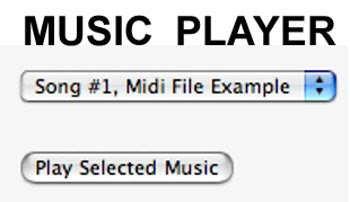

MORE NOTES:
1) Always remember your Blog will appear differently on different web browsers.
2) Do NOT loop or use autostart on the song. This is annoying for people who visit your Blog. If they want to play the sound or music file they will.
3) Newer versions of Windows have a real fit with file extensions. These can cause errors.
Hint - The TRICK is to load the sound file without the file extension, then windows ignores the file and just plays the sound.
4) I have tested this PLAYER in Windows Vista, Firefox for Windows, iMAC Safari, and Firefox for Apple.
5) To play any file type (mp3; wav; mid) in your player you must have a source. This is like loading animations files or flash files, you must have a place to extract the complete URL Address with the file name to work.
If you do not have a sound file source - I have now provided one for you to upload your Midi and WAV Files in addition to Flash Files at my Website: www.blogsfollowme.com

To see an Example of how this 'Gadget' works:
Please visit TESTING GOOGLE BLOGS

http://www.testinggoogleblogs.blogspot.com/

Change only the files in your Music / Sound Player as indicated by the colors in the picture below:
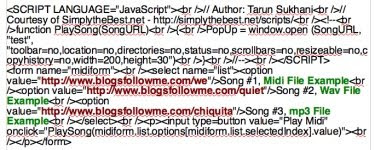

Sorry for the delay. I have refined this Google Blogging Tip and made it simpler to use.
Happy Blogging.
Remember to be Followed – you must Follow others!

Support this Blog, please follow me.


7/22/09

Google Blogging Tip # 57: Setting Up Your Google Blog Gadgets, Part 24

Email Question....
Q) Can you tell me how to get the World Greenhouse Clock Widget to install on my Blog, or can you find an alternative, I have looked.
Submitted by: No Nonsense Green, Blog -
http://www.nononsensegreen.blogspot.com/

A) This answer has three parts:
First: I have tested this both on Apple and Windows Vista. It requires an additional 3rd party software download that on Apple doesn't work. You should never download a Blog or Web Page Widget that doesn't display or work on the major computer browsers (Apple iMAC Safari, Firefox for Apple, Windows Vista, and Firefox for Windows).
Note: If you get a message that something requires a third party install to run a program or device, the only three that are safe to download are:
1/ - Adobe Acrobat, this reads .pdf files.
2/ - Macromedia Flash to play .swf and .flv flash files.
3/ - Flip for MAC including Windows for MAC

Second: I did send the bank a message informing them of the problem and suggesting that the widget be rewritten in a JavaScript format using Google's API for standardization.

Finally: I did find another Carbon base greenhouse counter. It is not nearly as aesthetic as the Bank Greenhouse Gas Clock, but it is easy to install and use.
Note: Maybe some college student or Green person will write a better Greenhouse Gas Clock in JavaScript. If they do I hope they send it to me so it can be shared by all my readers and supporters.
See below for an optional Widget....


Monthly World Carbon Emissions


Steps:
1. Sign-in to your Google Blog.
2. Select 'Layouts.'
3. Select 'Gadgets.'
4. Select 'HTML / JavaScript.'
5. Save, View Blog, make changes as needed including move snippet widget icon to desired location.

Copy and Paste the JavaScript Code....


To see an Example of how this 'Widget (Gadget)' works:
Please visit TESTING GOOGLE BLOGS

http://www.testinggoogleblogs.blogspot.com/

--->Please support this Blog, follow me.<---
More Blog and Web Page Tips, Tricks, Hints, HTML Codes, and JavaScripts coming soon.

7/17/09

Google Blogging Tip # 56: Standard HTML Codes for Text:

By using standard HTML Codes, you can 'Change' your TEXT on any BLOG or Web Page the way you want it to appear.
These few simply Codes are shown as EXAMPLES below with a corresponding Number of 1. through 10.
In the Picture Below, I have the actual HTML for each 'Code' needed to achieve the desired TEXT Appearance. You can mix and match these for the any desired look.

These can be used for -
One Letter
One Word
One Phrase
One Sentence
One Paragraph
The Entire Page

1. Blogs Follow Me
2. Blogs Follow Me

3. Blogs Follow Me
4. Blogs Follow Me
5. Blogs Follow Me
6. Blogs Follow Me
7. Blogs Follow Me
8. Blogs Follow Me


Examples of Intermixing the HTML Codes:
9. Blogs Follow Me

10. Blogs Follow Me


Note when centering anything: Text, Pictures, Animation, Movie - this code MUST start at the beginning and end last.


The reason I added these HTML Codes.....
Google Blog Templates are NOT standard or uniform, especially on the 'New Postings / Publish Post Box'
They can look like one of these two basic types:
The FIRST Picture shows a Post Box with only 7 functions....


The SECOND Picture shows a Post Box with more functions....


Happy Blogging and have a good weekend.
Yes, there are many more Tips, Tricks, Hints, HTML Codes, and JavaScripts coming for your Blogs and Websites.

Concerning your EMAILS, they will all be answered, please be patient.
At the moment I am maxed out for followers of 300, as many of you are. Google only allows the Blogger, in this case that's me, to follow a maximum of 300. However, you can have an unlimited number of Followers Following you, so please support this Blog, Follow it. You will still be ADDED to the Blog Rolls and the LINKS section of this Blog, when you follow: Blogs Follow Me.
Thank you...

7/13/09

Google Blogging Tip # 55: Adding an mp3 Player to Your Blog or Website

[Q] Can you provide a FREE mp3 Music Player that works on websites and blogs?

[A] Yes. See the HTML/JavaScript Code Below. Also see notes.
Number of Email Inquiries: 6

mp3 Music Player for Blogs and Websites

Steps:
1. Sign-in to your Blog.
2. Select 'Layouts.'
3. Select 'Gadgets.'
4. Select 'HTML / JavaScript.'
5. Copy and Paste Code.
6. Change URL Address and mp3 Song.
7. Save, View Blog, make changes as needed including move snippet icon to desired location.


Copy and Paste the JavaScript Code....


The picture below shows the code when copied into your HTML / JavaScript Gadget Box on your Google Blog. This will appear on your 'Sidebar (column).'
The Item in RED must be changed for your music. It must contain the complete URL Address.
Remember to change both, it appears twice.


NOTES:
1) Always remember your Blog will appear differently on different web browsers.
2) Do NOT loop or use autostart on the song. This is annoying for people who visit your Blog. If they want to play the mp3 file they will. Also using autostart feature will cause a sound conflict if you add a Video File, such as YouTube.
3) Newer versions of Windows have a hissy fit with file extensions. These can cause errors.
Hint - The TRICK is to load the sound file without the file extension, then windows ignores the file and just plays the sound.
4) I have tested this mp3 player in Windows Vista, Firefox for Windows, iMAC Safari, and Firefox for Apple.
5) To play an mp3 file in your player you must have a source. This is like loading animations files or flash files, you must have a place to extract the complete URL Address with the mp3 file name to work.
If you do not have one, there are some available on the Internet.
You can use the song I chose by Johnny Cash, Walk the Line and just use my source code.
6) If you are adding this to your Website, it goes after BODY, place it where you want it to appear on your site.

To see an Example of how this 'Gadget' works:
Please visit TESTING GOOGLE BLOGS

http://www.testinggoogleblogs.blogspot.com/
thanks to AddThis for the gadget.

7/11/09

Google Blogging Tip # 54: Setting Up Your Google Blog Gadgets, Part 23

Email Question...
Q) Can you please provide (recommend) a useful Gadget other than the ones Google currently has in its list?
A) Yes, lets start with a simple one called 'One Button Content.'
This is useful in the extent it allows access to email you, print your blog page, and access many other Internet Features including other Social Networks like Twitter, MySpace, etc.
It works on a simple MOUSE OVER function so it doesn't take up a lot of space.
Number of Email Inquiries: 34


ONE Button Content Everywhere


Steps:
1. Sign-in to your Blog.
2. Select 'Layouts.'
3. Select 'Gadgets.'
4. Select 'HTML / JavaScript.'
5. Save, View Blog, make changes as needed including move snippet icon to desired location.

Button Instructions:::

For Websites / Web Pages:
Copy and paste the JavaScript Code below between the body and /body tags.


For Google Blogs:
Copy the Code below and Paste into your Layout, Gadgets, HTML / JavScript. Then use the mouse to move the Icon Snippet to the desired location on your Google blogspot Blog Column (sidebar).
Note: I recommended placing it somewhere near the Top of the Sidebar.

Copy and Paste this CODE-


To see an Example of how this 'Gadget' works:
Please visit TESTING GOOGLE BLOGS

http://www.testinggoogleblogs.blogspot.com/
thanks to AddThis for the gadget.