Part 1 - For Google Bloggers Only -
Some people have numerous blogs, some up to 20 or more.
I will add the FIRST one only to the 'Follow' list.
The First one only to the 'Blog Roll' roll list, by appropriate category.
The First Five Only to the LINKS list.
Part 2 - For Non Google Bloggers including Website Owners -
You will be added ONLY to the LINKS List.
As a general rule, 'Followers' don't work on websites anyway.
Google still doesn't have the bugs completely fixed on other Blogs such as MySpace and Facebook.
Please remember to report any BROKEN Links so they can be removed.
Thanks for understanding.
Happy blogging.
3/18/09

3/17/09
New Email Questions and Helpful Answers:
(Q)1 – According to your Google Blogging Tip # 13, I need to keep the number of items on my main Blog Page to a maximum number of 7 posts, and keep or eliminate my outside Blog features such as 'visitor counters, etc.' to one or none. Yet my Personal Blog Page loads fast on my computer after I post or add something. I am confused on this issue that my Blog Page will load slow, can you explain?
Email Inquiries (9)
(A)1 – Yes, here is the simple explanation.
Your computer, whether an Apple (iMAC) or any Windows Version, laptop or desktop, uses Cache and Cookies to store data and reduce RAM usage. Once stored on your computer this allows all previous data to load quickly.
In addition, Google uses servers located all over. So a person in New York City is using a different Google Server than someone living in Seattle Washington. Add this to the fact routing of Internet data takes different paths at different times of the day. In the short explanation, clean out your cookies and cache, then test how fast your computer loads your Blog.
Also try another computer such as one at a public library. If you have someone on the other side of the country or world ask them to clean out their cache and cookies and see how long it takes to load your Blog. You want them to do this if they are frequent visitors or users of your Blog because they will also have stored the data in their Cache and Cookies.
(Q)2 – My Blog is listed with Google Search Engine, thanks to your instructions, but when I travel outside my own area my Blog calls up differently, position, why is that?
Email Inquiries (6)
(A)2 – That's normal. Again this has to do with servers. This is not unique to Google. You will experience this on MSN and Yahoo as well. On occasion they will be the same, but there is no cause to worry if the position is different.
(Q)3 – What is the best way to get my Google Blog exposed?
Email Inquiries (29).
(A)3 – Do NOT pay for any service that claims they can get you listed on Search Engines or improve your standing (listing position) with Search Engines.
First – ALL Search Engines treat Blogs differently than they do websites.
Websites are position primarily by three factors: People who Link to that site; Number of hits (external visitors to the site; and Meta Tabs. Yahoo and MSN use some variation of these. Google does not. Google is unique in it's ability to rank and list websites. It changes the criteria frequently and this is why you could be in the top ten this month and six months from now be on page 700. Many people claim to know how to overcome this but it is just hype and bull.
Next - As for your Google Blog.... Google uses certain criteria to ascertain Blog listing and position. Remember, this is about Google Blogs not blogs from other sources such as Facebook or MySpace.
Google currently is putting high emphasis on 'Followers.' So you should concentrate on following as many Blogs as possible but they must reciprocate to make it work. Many people are reluctant to use the 'Following' feature. The simple rule is anyone who wants to 'Follow Your Blog' return the favor and follow theirs. If you 'Follow a Blog' and they do not follow you in a reasonable period of time, say two weeks, remove them. You are benefiting them with NO benefit to you.
So get out there, visit Blogs, find things common to your Blog or of interest and ADD them to your Follow List.
Last – There are FREE websites and Blogs such as mine (Blogs Follow Me) that provide FREE listings of your Blog. Use them. List with as many as you can. The more exposure the better. But never pay for service to get your blog listed, shown, positioned, discussed, or in someone's special 'Friends' list.
Got a question about your Google Blog, email me at:
alternate4craigslist@yahoo.com
Email Inquiries (9)
(A)1 – Yes, here is the simple explanation.
Your computer, whether an Apple (iMAC) or any Windows Version, laptop or desktop, uses Cache and Cookies to store data and reduce RAM usage. Once stored on your computer this allows all previous data to load quickly.
In addition, Google uses servers located all over. So a person in New York City is using a different Google Server than someone living in Seattle Washington. Add this to the fact routing of Internet data takes different paths at different times of the day. In the short explanation, clean out your cookies and cache, then test how fast your computer loads your Blog.
Also try another computer such as one at a public library. If you have someone on the other side of the country or world ask them to clean out their cache and cookies and see how long it takes to load your Blog. You want them to do this if they are frequent visitors or users of your Blog because they will also have stored the data in their Cache and Cookies.
(Q)2 – My Blog is listed with Google Search Engine, thanks to your instructions, but when I travel outside my own area my Blog calls up differently, position, why is that?
Email Inquiries (6)
(A)2 – That's normal. Again this has to do with servers. This is not unique to Google. You will experience this on MSN and Yahoo as well. On occasion they will be the same, but there is no cause to worry if the position is different.
(Q)3 – What is the best way to get my Google Blog exposed?
Email Inquiries (29).
(A)3 – Do NOT pay for any service that claims they can get you listed on Search Engines or improve your standing (listing position) with Search Engines.
First – ALL Search Engines treat Blogs differently than they do websites.
Websites are position primarily by three factors: People who Link to that site; Number of hits (external visitors to the site; and Meta Tabs. Yahoo and MSN use some variation of these. Google does not. Google is unique in it's ability to rank and list websites. It changes the criteria frequently and this is why you could be in the top ten this month and six months from now be on page 700. Many people claim to know how to overcome this but it is just hype and bull.
Next - As for your Google Blog.... Google uses certain criteria to ascertain Blog listing and position. Remember, this is about Google Blogs not blogs from other sources such as Facebook or MySpace.
Google currently is putting high emphasis on 'Followers.' So you should concentrate on following as many Blogs as possible but they must reciprocate to make it work. Many people are reluctant to use the 'Following' feature. The simple rule is anyone who wants to 'Follow Your Blog' return the favor and follow theirs. If you 'Follow a Blog' and they do not follow you in a reasonable period of time, say two weeks, remove them. You are benefiting them with NO benefit to you.
So get out there, visit Blogs, find things common to your Blog or of interest and ADD them to your Follow List.
Last – There are FREE websites and Blogs such as mine (Blogs Follow Me) that provide FREE listings of your Blog. Use them. List with as many as you can. The more exposure the better. But never pay for service to get your blog listed, shown, positioned, discussed, or in someone's special 'Friends' list.
Got a question about your Google Blog, email me at:
alternate4craigslist@yahoo.com
To ALL Followers....
This new Google system of following is terrible.
It doesn't always place the newest follower(s) in the front, thus it makes following NEW people who have joined this Blog very difficult.
If I missed anyone, please forgive me.
Simply post a comment on this Blog, and I will catch up and add you...
or, you can send me an email to:
alternate4craigslist@yahoo.com
thanks for understanding
If you are looking for Google Blog Tips, they're plenty more coming.
When you don't see a daily post here it's because I am either swamped with work (on a deadline and burning the candle at both ends as they say), or traveling, please be patient.
Don't forget to help everyone out.....
If you find a Broken LINK posted here, send me an email, and I will remove it at once.
Coming later today, more email questions and answers.
It doesn't always place the newest follower(s) in the front, thus it makes following NEW people who have joined this Blog very difficult.
If I missed anyone, please forgive me.
Simply post a comment on this Blog, and I will catch up and add you...
or, you can send me an email to:
alternate4craigslist@yahoo.com
thanks for understanding
If you are looking for Google Blog Tips, they're plenty more coming.
When you don't see a daily post here it's because I am either swamped with work (on a deadline and burning the candle at both ends as they say), or traveling, please be patient.
Don't forget to help everyone out.....
If you find a Broken LINK posted here, send me an email, and I will remove it at once.
Coming later today, more email questions and answers.
3/11/09
Google Blogging Tip # 14 : Final Step in Choosing the Proper 'Settings' for your Blog
This is Part 3 of Selecting the Optimum Settings for your Blog:
Sign into your Blog, you should be at the Dashboard.
Select 'Settings.'
Select 'Comments.'
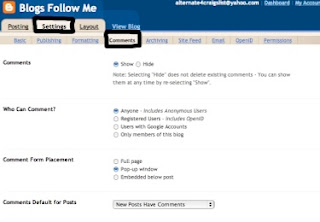
I have broken this page down into 4 parts.
On this page, set each of your settings as follows for optimum performance-
Comments: Select, 'Show.'
Who Can Comment: This is the area with the biggest errors and most understood for use.
If you want anyone to comment on your Blog, this is the best recommended choice,
Select, 'Anyone.'
If you want to limit comments to only Google and Friends (this means the person leaving a comment must have a Google or Friends Account),
Select, 'Registered Users.'
If you want to limit comments to Google Bloggers only,
Select, 'Users with Google Accounts' (this is NOT recommended).
If you want to Publish your Blog and have NO Comments of any kind,
Select, 'Only Members of This Blog.'
Comment Form Placement: Recommended, Select, Pop-up Window.
Comments Default for Post: Leave on 'Default' Setting (New Post Have Comments).
See Picture Below:
Continuing with Optimum Settings for your Comments-
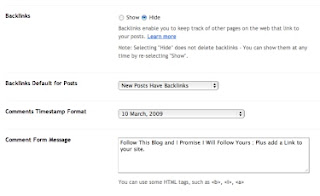
Backlinks: Select, 'Hide.'
Backlinks Default for Post: Select, default setting, 'New Post have Backlinks.'
Comment Timestamp Format: Select, Recommended, 'Date Only.'
Comment Form Message: This is what the person sees when visiting your Blog and selects, leave a Comment.
You can put anything here, like 'Please, NO SPAM'; or 'Post in English Only'; or 'Please Follow My Blog', etc. or any combination of phrases.
This is Highly Recommended that you select, and put something here!
See Picture Below:
Continuing with the next part of Optimum Settings for you Comments-
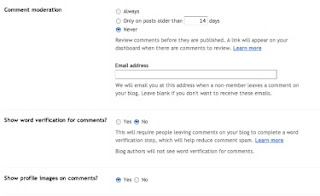
Comment Moderation: This is another very misunderstood area of Google Blogging and misused.
The optimum and highly recommended setting, Select, 'NEVER.'
Many people who have a Google Blog have had a MySpace or Facebook page before. Google Blogs are for open forums on the Internet. If you want something for friends and family only, Google really isn't for you. You should get a FaceBook or MySpace Page.
Most people find it offensive or at minimum irritating to find a person who has a Blog with comments and then see, Post approved after moderation.
One argument people make is that I don't want SPAM.
Spam is part of the Internet and isn't going away. The best thing is to monitor your Blog routinely and if you see a post that is offensive or is Spam just delete it. This way you still get plenty of comments from people who are generally interested in what you post, the whole idea of Google Blogging.
Show Word Verification for Comments: Best optimum setting is 'NO.'
If your worried about Spam, then Select, 'Yes' here.
Show Profile Images on Comments: Select, 'Yes.'
See Picture Below:
The last part of Optimum Settings for you Comments-
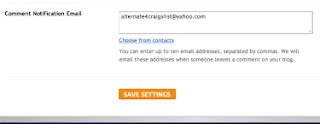
Comment Notification Email: This is 'Recommended.'
Simply put any complete email address you have into this box. It is highly recommended that you get and use a Yahoo Email Account for this item.
Note: You will end up with some Spam. The advantage of this block is you can check your email for comments instead of your Blog. The email will always show where the comment was from and on what post.
Save Settings; Don't forget to 'Save' your settings before quitting. Return to Dashboard and then back to this page to double check all the settings took properly.
See Picture Below:
Note: The remaining items (listed below) under 'Settings' should be left to Default Settings by Google at this time.
Archiving
Site Feed
Email
OpenID
Permissions
Sign into your Blog, you should be at the Dashboard.
Select 'Settings.'
Select 'Comments.'
I have broken this page down into 4 parts.
On this page, set each of your settings as follows for optimum performance-
Comments: Select, 'Show.'
Who Can Comment: This is the area with the biggest errors and most understood for use.
If you want anyone to comment on your Blog, this is the best recommended choice,
Select, 'Anyone.'
If you want to limit comments to only Google and Friends (this means the person leaving a comment must have a Google or Friends Account),
Select, 'Registered Users.'
If you want to limit comments to Google Bloggers only,
Select, 'Users with Google Accounts' (this is NOT recommended).
If you want to Publish your Blog and have NO Comments of any kind,
Select, 'Only Members of This Blog.'
Comment Form Placement: Recommended, Select, Pop-up Window.
Comments Default for Post: Leave on 'Default' Setting (New Post Have Comments).
See Picture Below:

Continuing with Optimum Settings for your Comments-
Backlinks: Select, 'Hide.'
Backlinks Default for Post: Select, default setting, 'New Post have Backlinks.'
Comment Timestamp Format: Select, Recommended, 'Date Only.'
Comment Form Message: This is what the person sees when visiting your Blog and selects, leave a Comment.
You can put anything here, like 'Please, NO SPAM'; or 'Post in English Only'; or 'Please Follow My Blog', etc. or any combination of phrases.
This is Highly Recommended that you select, and put something here!
See Picture Below:

Continuing with the next part of Optimum Settings for you Comments-
Comment Moderation: This is another very misunderstood area of Google Blogging and misused.
The optimum and highly recommended setting, Select, 'NEVER.'
Many people who have a Google Blog have had a MySpace or Facebook page before. Google Blogs are for open forums on the Internet. If you want something for friends and family only, Google really isn't for you. You should get a FaceBook or MySpace Page.
Most people find it offensive or at minimum irritating to find a person who has a Blog with comments and then see, Post approved after moderation.
One argument people make is that I don't want SPAM.
Spam is part of the Internet and isn't going away. The best thing is to monitor your Blog routinely and if you see a post that is offensive or is Spam just delete it. This way you still get plenty of comments from people who are generally interested in what you post, the whole idea of Google Blogging.
Show Word Verification for Comments: Best optimum setting is 'NO.'
If your worried about Spam, then Select, 'Yes' here.
Show Profile Images on Comments: Select, 'Yes.'
See Picture Below:

The last part of Optimum Settings for you Comments-
Comment Notification Email: This is 'Recommended.'
Simply put any complete email address you have into this box. It is highly recommended that you get and use a Yahoo Email Account for this item.
Note: You will end up with some Spam. The advantage of this block is you can check your email for comments instead of your Blog. The email will always show where the comment was from and on what post.
Save Settings; Don't forget to 'Save' your settings before quitting. Return to Dashboard and then back to this page to double check all the settings took properly.
See Picture Below:

Note: The remaining items (listed below) under 'Settings' should be left to Default Settings by Google at this time.
Archiving
Site Feed
OpenID
Permissions
3/10/09
Google Blogging Tip # 13 : The Next Step in Choosing the Proper 'Settings' for your Blog
This is Part 2 of Selecting the Optimum Settings for your Blog:
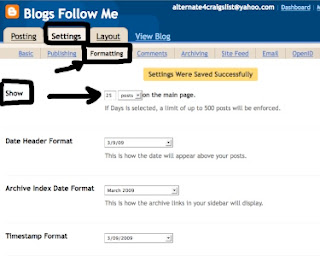
Sign into your Blog, you should be at the Dashboard.
Select 'Settings.'
Select 'Formatting.'
Again, I have broken this page down into three parts.
The first thing Google list is 'SHOW.'
This is important to your overall Blog set-up and performance, how it runs.
It represents the number of 'Posts' that can appear on any one page including your main Blog page. Google sets the default setting as '7.' If you are posting pictures, videos, or YouTube Links, I recommend this setting to be '1' but not more than '3.'
This is the number of individual post, not the number of pictures or items within a post.
For Example: If you post 5 pictures within one post, that is still one post.
Your Blog functions like a Web Page. It must load the page to be viewed. Visitors with slower running Modem Speeds may get frustrated and leave your Blog before ever viewing it. All of us have visited Blogs that the main page is endless. All kinds of stuff all over the place. This takes a long time to load, is hard to follow, and does not help your Blog with Search Engines. Smaller quantity post are best.
The next three items shown on this page have to do with time and date. They are not important.
I recommend selecting from the drop down boxes DATES only.
See Picture Below:
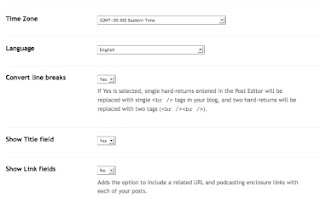
This middle section of the page has-
Time Zone: Select whatever time zone you live in.
Language: Select whatever the language is of the country you live in, unless your target audience is another country.
Example: You live in Mexico City but your primary readers are in the United States, then you should select English.
Set the NEXT 3 items: to YES, YES, NO
See Picture Below:
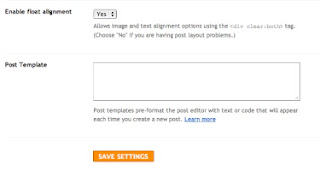
This is the last section of this page.
It should be YES
Leave Blank (we will address this feature later).
Save Settings
See Picture Below:
Happy Blogging....
Tomorrow we will set-up 'Comments' under Settings.
This is the one place most people make all their error in setting up a Blog.
Sign into your Blog, you should be at the Dashboard.
Select 'Settings.'
Select 'Formatting.'
Again, I have broken this page down into three parts.
The first thing Google list is 'SHOW.'
This is important to your overall Blog set-up and performance, how it runs.
It represents the number of 'Posts' that can appear on any one page including your main Blog page. Google sets the default setting as '7.' If you are posting pictures, videos, or YouTube Links, I recommend this setting to be '1' but not more than '3.'
This is the number of individual post, not the number of pictures or items within a post.
For Example: If you post 5 pictures within one post, that is still one post.
Your Blog functions like a Web Page. It must load the page to be viewed. Visitors with slower running Modem Speeds may get frustrated and leave your Blog before ever viewing it. All of us have visited Blogs that the main page is endless. All kinds of stuff all over the place. This takes a long time to load, is hard to follow, and does not help your Blog with Search Engines. Smaller quantity post are best.
The next three items shown on this page have to do with time and date. They are not important.
I recommend selecting from the drop down boxes DATES only.
See Picture Below:

This middle section of the page has-
Time Zone: Select whatever time zone you live in.
Language: Select whatever the language is of the country you live in, unless your target audience is another country.
Example: You live in Mexico City but your primary readers are in the United States, then you should select English.
Set the NEXT 3 items: to YES, YES, NO
See Picture Below:

This is the last section of this page.
It should be YES
Leave Blank (we will address this feature later).
Save Settings
See Picture Below:

Happy Blogging....
Tomorrow we will set-up 'Comments' under Settings.
This is the one place most people make all their error in setting up a Blog.
3/9/09
Google Blogging Tip # 12 : Choosing the Proper 'Settings' for your Blog
This is Part 1 of Selecting the Optimum Settings for your Blog:
Sign into your Blog, you should be at the Dashboard.
Select 'Settings.'
See Picture Below:
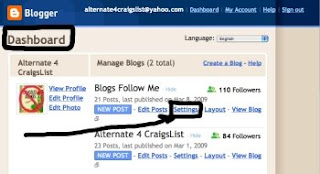
This takes you to the first item, 'Basic', I have broken the page down into three parts.
We will set-up the BASIC Settings Today....
See Picture Below, top part of the page:
You should always have a BLOG TITLE.
If you have an email address, it helps if the email address matches the Blog Title, more on this later.
You should always have a BLOG Description.
If you wish to separate the lines of description and stop them from running together, you need to use some HTML Language.
At the end of each set of words or sentence add < br > this is found above the , and . plus use the letters br, altogether no spacing. It is HTML for line break.
NOTE: Look at my main Blog Page Header, you will see how this helps set-up your blog.
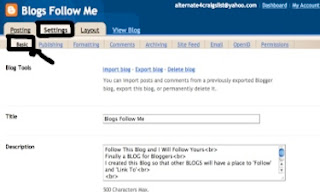
The next set of settings should be YES, YES, YES, NO
See Picture Below:
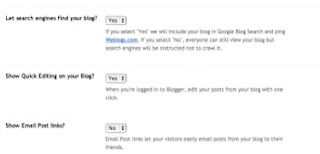
The next setting, Adult Content, should be set to NO unless you have Adult Content, then set to YES.
This error by users can often get your Blog canceled (taken down) by Google, set it correctly to start with!
The next two settings should be YES, Disabled.
When finished 'Click' on Save Settings.
See Picture Below:
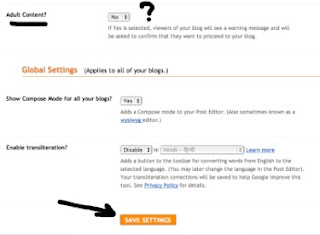
Clarification: Adult Settings do not necessarily just mean adult pictures. Some controversy and adult language is covered under this subject. You can read the terms of agreement set by Google. I always advise people if they are not sure to click YES. Even some subjects should not be viewed by persons under 18-years-old.
The NEXT item on SETTINGS is 'Publishing', we will not address this. It is set to a default setting for a reason, don't mess with it!
Happy Blogging....
Tomorrow we will set-up 'Formatting' under Settings.
Sign into your Blog, you should be at the Dashboard.
Select 'Settings.'
See Picture Below:

This takes you to the first item, 'Basic', I have broken the page down into three parts.
We will set-up the BASIC Settings Today....
See Picture Below, top part of the page:
You should always have a BLOG TITLE.
If you have an email address, it helps if the email address matches the Blog Title, more on this later.
You should always have a BLOG Description.
If you wish to separate the lines of description and stop them from running together, you need to use some HTML Language.
At the end of each set of words or sentence add < br > this is found above the , and . plus use the letters br, altogether no spacing. It is HTML for line break.
NOTE: Look at my main Blog Page Header, you will see how this helps set-up your blog.

The next set of settings should be YES, YES, YES, NO
See Picture Below:

The next setting, Adult Content, should be set to NO unless you have Adult Content, then set to YES.
This error by users can often get your Blog canceled (taken down) by Google, set it correctly to start with!
The next two settings should be YES, Disabled.
When finished 'Click' on Save Settings.
See Picture Below:

Clarification: Adult Settings do not necessarily just mean adult pictures. Some controversy and adult language is covered under this subject. You can read the terms of agreement set by Google. I always advise people if they are not sure to click YES. Even some subjects should not be viewed by persons under 18-years-old.
The NEXT item on SETTINGS is 'Publishing', we will not address this. It is set to a default setting for a reason, don't mess with it!
Happy Blogging....
Tomorrow we will set-up 'Formatting' under Settings.
3/8/09
Google Blogging Tip # 11 : How to Change Your Blog's Template
First determine if you are happy with your current selected 'Template.'
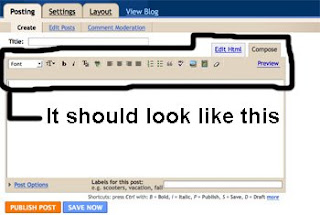
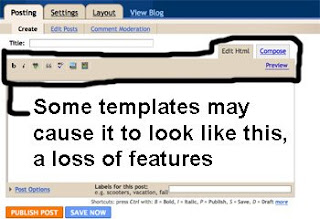
One way is to see if the original Blog selection has all the 'Posting' features.
See the two pictures below to determine what features are missing, if any:
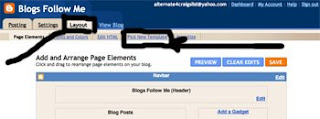
To CHANGE Templates after creating your Blog, simply go to the Dashboard.
Select 'Layout.'
Then select 'Pick New Template.'
See picture below:
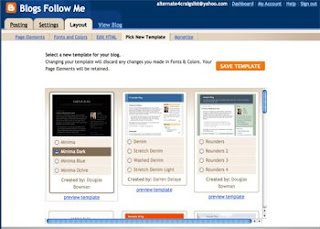
You are now at this page.
Here you can play around with various templates and see which ones you like.
Once you select one, go back and check to see if all the features for posting are there.
Note: Changing templates after you have started posting may cause loss of data. That's why it is important to select the template early on and live with it.
See picture below:
Happy Blogging......
Coming NEXT: Choosing the proper 'Settings' for your Blog.
One way is to see if the original Blog selection has all the 'Posting' features.
See the two pictures below to determine what features are missing, if any:


To CHANGE Templates after creating your Blog, simply go to the Dashboard.
Select 'Layout.'
Then select 'Pick New Template.'
See picture below:

You are now at this page.
Here you can play around with various templates and see which ones you like.
Once you select one, go back and check to see if all the features for posting are there.
Note: Changing templates after you have started posting may cause loss of data. That's why it is important to select the template early on and live with it.
See picture below:

Happy Blogging......
Coming NEXT: Choosing the proper 'Settings' for your Blog.
3/7/09
Google Blogging Tip # 10 : Getting Started with My New Google Blog
Before starting a Google Blog you should do the following:
1/ Select a Blog Name.
2/ Select a Picture Image for your Google Profile.
3/ Select your FIRST Post Message - Text, Video, YouTube Link, etc.
4/ Select a picture or Icon if you plan to put one in the Template column.
5/ Create an EMAIL Account for your Google Blog. I recommend Yahoo Email. If possible try and get an email address with the same address as the Google Blog Name.
When you completed the above set up your Google Blog-
Lets get started:
Initial 'Selection or Choice' for your Google Blog Template.
Just pick one, and click on the arrow.
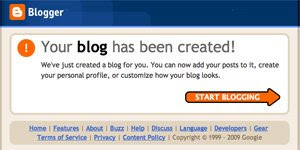
See Picture Below:
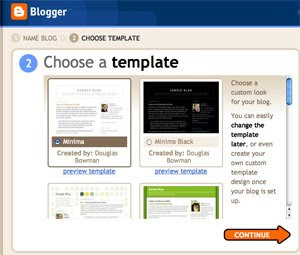
Just 'Click' on the arrow and keep going....
See Picture Below:
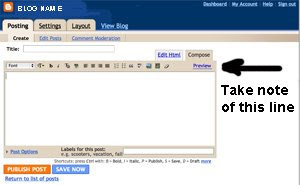
This 'Line' determines the functions you can easily do with your post for Text, Picture Images, and Videos.
Some Google 'Templates' for whatever reason will not display all the functions. So if you choose a 'Template' that has less functions, now is the time to change before making ANY post to your NEW Blog!
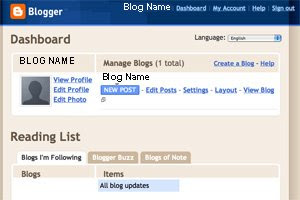
Skip this Step and go to 'Dashboard.'
See Picture Below:
Set-up Your Profile First, see Google Tips # 7 and # 8.
See Picture Below:
May you have Happy Blogging......
Coming NEXT: Changing Your Google Template BEFORE you start Blogging!
1/ Select a Blog Name.
2/ Select a Picture Image for your Google Profile.
3/ Select your FIRST Post Message - Text, Video, YouTube Link, etc.
4/ Select a picture or Icon if you plan to put one in the Template column.
5/ Create an EMAIL Account for your Google Blog. I recommend Yahoo Email. If possible try and get an email address with the same address as the Google Blog Name.
When you completed the above set up your Google Blog-
Lets get started:
Initial 'Selection or Choice' for your Google Blog Template.
Just pick one, and click on the arrow.
See Picture Below:

Just 'Click' on the arrow and keep going....
See Picture Below:

This 'Line' determines the functions you can easily do with your post for Text, Picture Images, and Videos.
Some Google 'Templates' for whatever reason will not display all the functions. So if you choose a 'Template' that has less functions, now is the time to change before making ANY post to your NEW Blog!
Skip this Step and go to 'Dashboard.'
See Picture Below:

Set-up Your Profile First, see Google Tips # 7 and # 8.
See Picture Below:

May you have Happy Blogging......
Coming NEXT: Changing Your Google Template BEFORE you start Blogging!
3/6/09
Google Blogging Tip # 9 : How to FOLLOW someone who is Following you.
To follow a person who is following you, simply open your Blog to the MAIN Page.
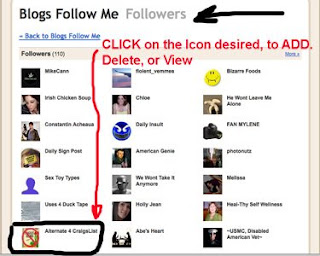
Find your box that contains all your followers.
There is a small 'Icon' in the upper right corner.
Click on it.
See picture below:
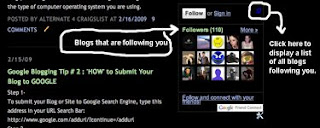
Once you have clicked on the small 'Icon' you get this page.
The ICONS shown on this page work from top left to right.
The newest one should be first.
Click on the desired Icon.
It will open the 'Follower Profile.'
See picture below:
Note: If you are using a MAC computer Safari may not display these properly or they may not open. This is why you should be using Mozilla Firefox latest version for Blog updates and maintenance.
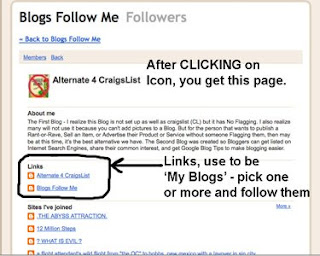
Simply 'Click' on one of the LINKS. That will take you to the person's Blog or Webpage that is following you.
Copy the complete URL, paste it in your 'ADD' follow (see Google Blogging Tip # 5), and you are now following the person that is following you.
See picture below:
Again sorry for any delays and updates, I been horned by the Rhino Virus.
More Happy Blogging....
Next Blog Tip will be about setting up your Blog Page.
Find your box that contains all your followers.
There is a small 'Icon' in the upper right corner.
Click on it.
See picture below:

Once you have clicked on the small 'Icon' you get this page.
The ICONS shown on this page work from top left to right.
The newest one should be first.
Click on the desired Icon.
It will open the 'Follower Profile.'
See picture below:
Note: If you are using a MAC computer Safari may not display these properly or they may not open. This is why you should be using Mozilla Firefox latest version for Blog updates and maintenance.

Simply 'Click' on one of the LINKS. That will take you to the person's Blog or Webpage that is following you.
Copy the complete URL, paste it in your 'ADD' follow (see Google Blogging Tip # 5), and you are now following the person that is following you.
See picture below:

Again sorry for any delays and updates, I been horned by the Rhino Virus.
More Happy Blogging....
Next Blog Tip will be about setting up your Blog Page.
3/5/09
Latest Google Blog Questions and Updates:
Q1/ : You recently issued Google Blog Tips about setting-up a Blog which included Adding/Deleting Followers, how does this change with the NEW Google Follower Format?
Email Inquiries (11)
A1/ : If you go to Google Blog Tips #6 (Modified), you will see the changes and new instructions.
Next: How to use the New Google Follow Me Format.
Email Inquiries (11)
A1/ : If you go to Google Blog Tips #6 (Modified), you will see the changes and new instructions.
Next: How to use the New Google Follow Me Format.
Subscribe to:
Posts (Atom)





 Chinese
 French
 German
 Italian
 Japanese
 Korean
 Russian
 Spanish

